BenchmarkXPRT Blog banner

Category: results

WebXPRT 5 GA is almost here!

Exciting news: We’re currently in the final stages of preparing for the WebXPRT 5 GA release and expect to take it live very soon!

The WebXPRT 5 Preview period has been very successful, and we appreciate the interest and engagement that we’ve seen from around the world. When we released the Preview and encouraged testers to submit and publish results, we said we’d try to limit any changes in the GA release to areas that would not affect test scores, such as the UI and non-workload features. We’re pleased to report that we’ve achieved that goal. WebXPRT 5 Preview testing results will be comparable with GA build results, so there will be no need to retest with the GA if you’ve already recorded Preview build scores.

If you haven’t yet used the WebXPRT 5 Preview, we encourage you to check out this blog post about the workload lineup. As we implied above, the seven core workloads in the Preview build will remain unchanged in the GA release. Additionally, while we are including a placeholder section for future experimental workloads, we’re not yet ready to include one in the GA release. We are actively working on candidate workloads for that section, but some of the underlying web technologies are not yet ready for widespread use. Taking the time to get these experimental workloads right means that there are really cool and all-new WebXPRT 5 capabilities that are still on the way!

Keep an eye on this space and WebXPRT.com for the GA announcement. This new chapter in the WebXPRT story will be the best one yet!

Justin

Gain a deeper understanding of WebXPRT 4 with our results calculation white paper

More people around the world are using WebXPRT 4 now than ever before. It’s exciting to see that growth, which also means that many people are visiting our site and learning about the XPRTs for the first time. Because new visitors may not know how the XPRT family of benchmarks differs from other benchmarking efforts, we occasionally like to revisit the core values of our open development community here in the blog—and show how those values translate into more free resources for you.

One of our primary values is transparency in all our benchmark development and testing processes. We share information about our progress with XPRT users throughout the development process, and we invite people to contribute ideas and feedback along the way. We also publish both the source code of our benchmarks and detailed information about how they work, unlike benchmarks that use a “black box” model.

For WebXPRT 4 users who are interested in knowing more about the nuts and bolts of the benchmark, we offer several information-packed resources, including our focus for today, the WebXPRT 4 results calculation and confidence interval white paper. The white paper explains the WebXPRT 4 confidence interval, how it differs from typical benchmark variability, and the formulas the benchmark uses to calculate the individual workload scenario scores and overall score on the end-of-test results screen. The paper also provides an overview of the statistical methodology that WebXPRT uses to translate raw timings into scores.

In addition to the white paper’s discussion of the results calculation process, we’ve also provided a results calculation spreadsheet that shows the raw data from a sample test run and reproduces the calculations WebXPRT uses to generate both the workload scores and an overall score.

In potential future versions of WebXPRT, it’s likely that we’ll continue to use the same—or very similar—statistical methodologies and results calculation formulas that we’ve documented in the results calculation white paper and spreadsheet. That said, if you have suggestions for how we could improve those methods or formulas—either in part or in whole—please don’t hesitate to contact us. We’re interested in hearing your ideas!

The white paper is available on WebXPRT.com and on our XPRT white papers page. If you have any questions about the paper or spreadsheet, WebXPRT, or the XPRTs in general, please let us know.

Justin

How to automate your WebXPRT 4 testing

We’re excited about the ongoing upward trend in the number of completed WebXPRT 4 runs that we’re seeing each month. OEM and tech press labs are responsible for a significant amount of that growth, and many of them use WebXPRT’s automation features to complete large blocks of hands-off testing at one time. We realize that many new WebXPRT users may be unfamiliar with the benchmark’s automation tools, so we decided to provide a quick guide to WebXPRT automation in today’s blog. Whether you’re testing one or 1,000 devices, the instructions below can help save you some time.

WebXPRT 4 allows users to run scripts in an automated fashion and control test execution by appending parameters and values to the WebXPRT URL. Three parameters are available:

  • test type
  • test scenarios
  • results

Below, you’ll find a description of those parameters and instructions for how you can use them to automate your test runs.

Test type

The WebXPRT automation framework accounts for two test types: (1) the six core workloads, and (2) any experimental workloads we might add in future builds. There are currently no experimental tests in WebXPRT 4, so always set the test type variable to 1.

  • Core tests: 1

Test scenario

The test scenario parameter lets you specify which subtest workloads to run by using the following codes:

  • Photo enhancement: 1
  • Organize album using AI: 2
  • Stock option pricing: 4
  • Encrypt notes and OCR scan using WASM: 8
  • Sales graphs: 16
  • Online homework: 32

To run a single subtest workload, use its code. To run multiple workloads, use the sum of their codes. For example, to run Stock options pricing (4) and Encrypt notes and OCR scan (8), use the sum of 12. To run all core tests, use 63, the sum of all the individual test codes (1 + 2 + 4 + 8 + 16 + 32 = 63).

Results format

The results format parameter lets you select the format of the results:

  • Display the result as an HTML table: 1
  • Display the result as XML: 2
  • Display the result as CSV: 3
  • Download the result as CSV: 4

To use the automation feature, start with the URL https://www.principledtechnologies.com/benchmarkxprt/webxprt/2021/wx4_build_3_7_3, append a question mark (?), and add the parameters and values separated by ampersands (&). For example, to run all the core tests and download the results, you would use the following URL: https://principledtechnologies.com/benchmarkxprt/webxprt/2021/wx4_build_3_7_3/auto.php?testtype=1&tests=63&result=4

We hope WebXPRT 4’s automation features will make testing easier for you. If you have any questions about WebXPRT or the automation process, please feel free to ask!

Justin

Shopping for back-to-school tech? The XPRTs can help!

For many students, the first day of school is just around the corner, and it’s now time to shop for new tech devices that can help set them up for success in the coming year. The tech marketplace can be confusing, however, with so many brands, options, and competing claims to sort through.

Fortunately, the XPRTs are here to help!

Whether you’re shopping for a new phone, tablet, Chromebook, laptop, or desktop, the XPRTs can provide industry-trusted performance scores that can give you confidence that you’re making a smart purchasing decision.

The WebXPRT 4 results viewer is a good place to start looking for device scores. The viewer displays WebXPRT 4 scores from over 700 devices—including many of the latest releases—and we’re adding new scores all the time. To learn more about the viewer’s capabilities and how you can use it to compare devices, check out this blog post.

Another resource we offer is the XPRT results browser. The browser is the most efficient way to access the XPRT results database, which currently holds more than 3,700 test results from over 150 sources, including major tech review publications around the world, manufacturers, and independent testers. It offers a wealth of current and historical performance data across all the XPRT benchmarks and hundreds of devices. You can read more about how to use the results browser here.

Also, if you’re considering a popular device, there’s a good chance that a recent tech review includes an XPRT score for that device. There are two quick ways to find these reviews: You can either (1) search for “XPRT” on your preferred tech review site or (2) use a search engine and input the device name and XPRT name, such as “Dell XPS” and “WebXPRT.”

Here are a few recent tech reviews that use one of the XPRTs to evaluate a popular device:

Lastly, here at Principled Technologies, we frequently publish reports that evaluate the performance of hot new consumer devices, and many of those reports include WebXPRT scores. For example, check out our extensive testing of HP ZBook G10 mobile workstations or our detailed comparison of Lenovo ThinkPad, ThinkBook, and ThinkCentre devices to their Apple Mac counterparts.

The XPRTs can help anyone stuck in the back-to-school shopping blues make better-informed and more confident tech purchases. As this new school year begins, we hope you’ll find the data you need on our site or in an XPRT-related tech review. If you have any questions about the XPRTs, XPRT scores, or the results database please feel free to ask!

Justin

Want to see your WebXPRT 4 results on WebXPRT.com? Here’s how to submit them for review

In a recent post, we discussed some key features that the WebXPRT 4 results viewer tool has to offer. In today’s post, we’ll cover the straightforward process of submitting your WebXPRT 4 test results for possible publication in the viewer.

Unlike sites that publish all submissions, we publish only results that meet our evaluation criteria. Those results can come from OEM labs, third-party labs, reliable tech media sources, or independent user submissions. What’s important to us is that the scores must be consistent with general expectations, and for sources outside of our labs and data centers, they must include enough detailed system information that we can determine whether the score makes sense. That being said, if your scores are a little bit different from what you see in our database, please don’t hesitate to send them to us for consideration. It costs you nothing.

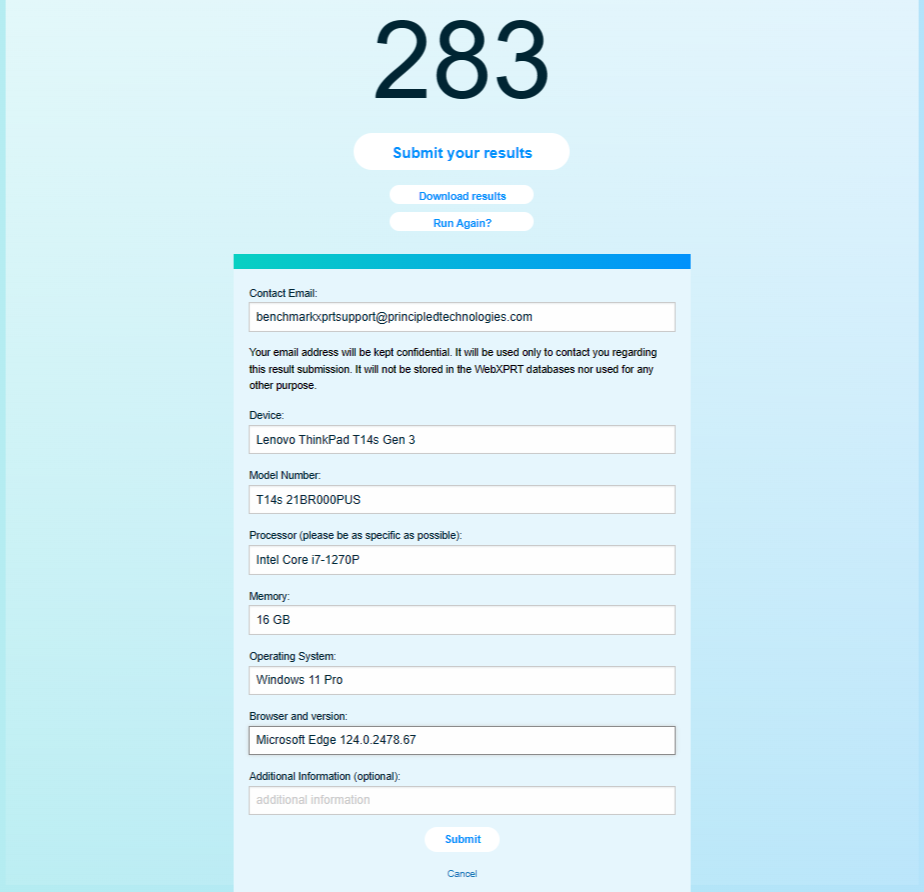
The actual result submission process is quick and easy. At the end of the WebXPRT test run, click the Submit your results button below the overall score, complete the short submission form, and click Submit again. Please be as specific as possible when filling in the system information fields. Detailed device information helps us assess whether individual scores represent valid test runs.

Figure 1 below shows how the form would look if I submitted a score at the end of a recent WebXPRT 4 run on one of the test systems here in our lab.

Figure 1: A screenshot of the WebXPRT 4 end-of-test results submission screen.

After you submit your score, we’ll contact you to confirm how we should display the source of the result in our database. You can choose one of the following:

  • Your first and last name
  • “Independent tester” (for users who wish to remain anonymous)
  • Your company’s name, if you have permission to submit the result in their name. If you want to use a company name, please provide a valid company email address that corresponds with the company name.

As always, we will not publish any additional information about you or your company without your permission.

We look forward to seeing your scores! If you have questions about WebXPRT 4 testing or results submission, please let us know!

Justin

The WebXPRT 4 results viewer: A powerful tool for browsing hundreds of test results

In our recent blog post about the XPRT results database, we promised to discuss the WebXPRT 4 results viewer in more detail. We developed the results viewer to serve as a feature-rich interactive tool that visitors to WebXPRT.com can use to browse the test results that we’ve published on our site, dig into the details of each result, and compare scores from multiple devices. The viewer currently has almost 700 test results, and we add new PT-curated entries each week.

Figure 1 shows the tool’s default display. Each vertical bar in the graph represents the overall score of a single test result, with bars arranged left-to-right, from lowest to highest. To view a single result in detail, hover over a bar to highlight it, and a small popup window will display the basic details of the result. You can then click to select the highlighted bar. The bar will turn dark blue, and the dark blue banner at the bottom of the viewer will display additional details about that result.

Figure 1: The WebXPRT 4 results viewer tool’s default display

In the example in Figure 1, the banner shows the overall score (237), the score’s percentile rank (66th) among the scores in the current display, the name of the test device, and basic hardware configuration information. If the source of the result is PT, you can click the Run info button in the bottom right-hand corner of the display to see the run’s individual workload scores. If the source is an external publisher, users can click the Source link to navigate to the original site.

The viewer includes a drop-down menu that lets users quickly filter results by major device type categories, plus a tab with additional filtering options, such as browser type, processor vendor, and result source. Figure 2 shows the viewer after I used the device type drop-down filter to select only laptops.

Figure 2: Screenshot from the WebXPRT 4 results viewer showing results filtered by the device type drop-down menu.

Figure 3 shows the viewer as I use the filter tab to explore additional filter options, such as processor vendor.

Figure 3: Screenshot from the WebXPRT 4 results viewer showing the filter options available with the filter tab.

The viewer will also let you pin multiple specific runs, which is helpful for making side-by-side comparisons. Figure 4 shows the viewer after I pinned four runs and viewed them on the Pinned runs screen.

Figure 4: Screenshot from the WebXPRT 4 results viewer showing four pinned runs on the Pinned runs screen.

Figure 5 shows the viewer after I clicked the Compare runs button. The overall and individual workload scores of the pinned runs appear in a table.

Figure 5: Screenshot from the WebXPRT 4 results viewer showing four pinned runs on the Compare runs screen.

We hope that you’ll enjoy using the results viewer to browse our WebXPRT 4 results database and that it will become one of your go-to resources for device comparison data.  

Are there additional features you’d like to see in the viewer, or other ways we can improve it? Please let us know, and send us your latest test results!

Justin

Check out the other XPRTs:

Forgot your password?