Once or twice per year, we refresh an ongoing series of WebXPRT comparison tests to see if recent updates have reordered the performance rankings of popular web browsers. We published our most recent comparison in January, when we used WebXPRT 4 to compare the performance of five browsers on the same system.
This time, we’re publishing an updated set of comparison scores sooner than we normally would because we chose to move our testing to a newer reference laptop. The previous system—a Dell XPS 13 7930 with an Intel Core i3-10110U processor and 4 GB of RAM—is now several years old. We wanted to transition to a system that is more in line with current mid-range laptops. By choosing to test on a capable mid-tier laptop, our comparison scores are more likely to fall within the range of scores we would see from a typical user today.
Our new reference system is a Lenovo ThinkPad T14s Gen 3 with an Intel Core i7-1270P processor and 16 GB of RAM. It’s running Windows 11 Pro, updated to version 23H2 (22631.3527). Before testing, we installed all current Windows updates and tested on a clean system image. After the update process was complete, we turned off updates to prevent any further updates from interfering with test runs. We ran WebXPRT 4 three times each on five browsers: Brave, Google Chrome, Microsoft Edge, Mozilla Firefox, and Opera. In Figure 1 below, each browser’s score is the median of the three test runs.
In our last round of tests—on the Dell XPS 13—the four Chromium-based browsers (Brave, Chrome, Edge, and Opera) produced close scores, with Edge taking a small lead among the four. Each of the Chromium browsers significantly outperformed Firefox, with the slowest of the Chromium browsers (Brave) outperforming Firefox by 13.5 percent.
In this round of tests—on the Lenovo ThinkPad T14s—the scores were very tight, with a difference of only 4 percent between the last-place browser (Brave) and the winner (Chrome). Interestingly, Firefox no longer trailed the four Chromium browsers—it was squarely in the middle of the pack.
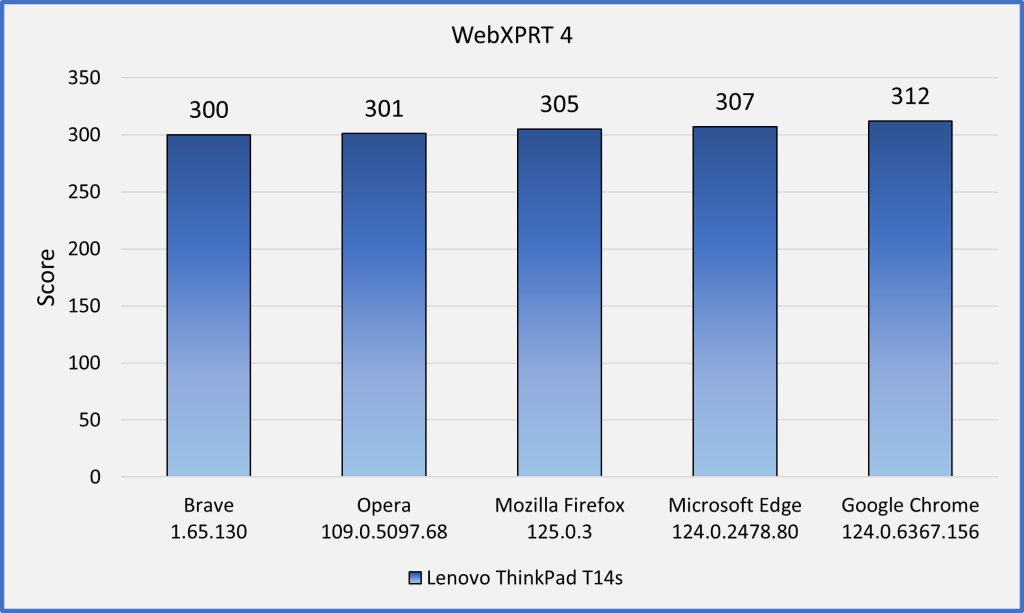
Unlike previous rounds that showed a higher degree of performance differentiation between the browsers, scores from this round of tests are close enough that most users wouldn’t notice a difference. Even if the difference between the highest and lowest scores was substantial, the quality of your browsing experience will often depend on factors such as the types of things you do on the web (e.g., gaming, media consumption, or multi-tab browsing), the impact of extensions on performance, and how frequently the browsers issue updates and integrate new technologies, among other things. It’s important to keep such variables in mind when thinking about how browser performance comparison results may translate to your everyday web experience.
Have you tried using WebXPRT 4 to test the speed of different browsers on the same system? If so, we’d love for you to tell us about it! Also, please tell us what other WebXPRT data you’d like to see!
Justin