A Principled Technologies report: Hands-on testing. Real-world results.
Preserve workload integrity during cross-architecture migration
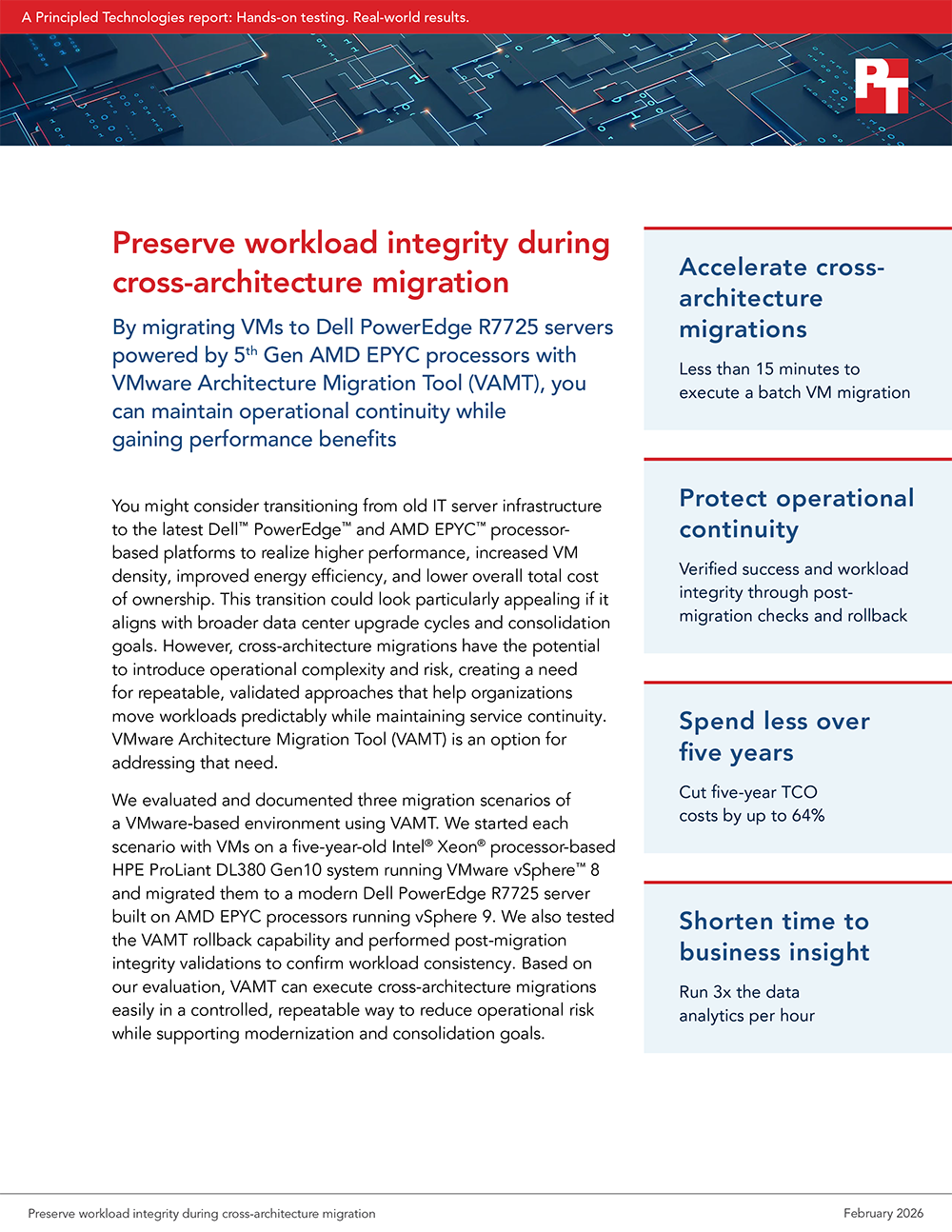
By migrating VMs to Dell PowerEdge R7725 servers powered by 5th Gen AMD EPYC processors with VMware Architecture Migration Tool (VAMT), you can maintain operational continuity while gaining performance benefits
You might consider transitioning from old IT server infrastructure to the latest Dell™ PowerEdge™ and AMD EPYC™ processor-based platforms to realize higher performance, increased VM density, improved energy efficiency, and lower overall total cost of ownership. This transition could look particularly appealing if it aligns with broader data center upgrade cycles and consolidation goals. However, cross-architecture migrations have the potential to introduce operational complexity and risk, creating a need for repeatable, validated approaches that help organizations move workloads predictably while maintaining service continuity. VMware Architecture Migration Tool (VAMT) is an option for addressing that need.
We evaluated and documented three migration scenarios of a VMware-based environment using VAMT. We started each scenario with VMs on a five-year-old Intel® Xeon® processor-based HPE ProLiant DL380 Gen10 system running VMware vSphere™ 8 and migrated them to a modern Dell PowerEdge R7725 server built on AMD EPYC processors running vSphere 9. We also tested the VAMT rollback capability and performed post-migration integrity validations to confirm workload consistency. Based on our evaluation, VAMT can execute cross-architecture migrations easily in a controlled, repeatable way to reduce operational risk while supporting modernization and consolidation goals.
How we tested
For our validation testing, we prepared three VMs (one Windows Server 2022, one Ubuntu 22.04 LTS, and one SQL Server 2022) on a five-year-old Intel Xeon processor-powered HPE ProLiant DL380 Gen10 server running VMware vSphere 8, a solution like what you might have in production now, with standardized CPU, memory, and disk layout. For our SQL Server database workload, we populated a test dataset and created backups to use in validation of content integrity after migration.
To assess the ease and speed of VAMT migration and validation to an AMD EPYC processor-based Dell PowerEdge R7725 server running vSphere 9, we performed:
Single VM migrations
A batch migration
A scheduled migration
A migration rollback
We present our single and batch migration timings after the following guide of general VAMT migration steps and flow.
About VAMT
The VMware Architecture Migration Tool (VAMT) is an open-source automation utility co-developed by VMware and AMD to streamline cold migrations of VMs between different hardware architectures. Traditional cold migration includes manually powering down VMs, relocating storage and compute, and verifying post-migration operations. VAMT compresses these steps into an automated workflow using VMware PowerCLI scripts, scheduling, and task orchestration to reduce manual effort and operational friction.
Designed for use in heterogeneous VMware vCenter environments, VAMT helps IT teams plan, execute, and validate migrations while providing configurable controls for change windows, throttling, logging, rollback scenarios, and success verification based on VMware Tools status. By following cold migration best practices and supporting integration with existing processes, VAMT aims to help organizations reduce the complexity of architecture transitions and better leverage modern infrastructure capabilities.
How to migrate and update VMs from Intel to AMD architectures using VAMT
Although live VM migrations can help maintain application availability, they are not always feasible. Cross-architecture migrations require cold migrations, as could migrating high-sensitivity workloads, migrating between hypervisors, reconfiguring networking, or migrating during peak-usage hours.
Migrating VMs between processor architectures and vSphere 8 and 9 environments requires planning, repeatable processes, and verification of application-level integrity, but as we found, VAMT makes it an easy task that a sys admin can complete in a small maintenance window. (For example, we migrated all three VMs in 14 minutes and 4 seconds, which includes automated powering down of VMs and running automated post-migration checks.) You could apply the steps in this section to a single VM or a batch migration.
The following general steps and best practices, as well as some useful tips, provide an overview of how to cold migrate VMs across heterogeneous data center environments with VAMT. Note that as every workload has its own best practices and requirements, the timing and steps listed here could vary for your workloads. For example, VM size would affect the total migration time, with larger VMs requiring more time. Use our recommendations to reduce risk, preserve identity attributes, and validate application health post-migration.
High-level migration workflow
1. Prepare source and destination hosts and management plane
Ensure the destination VMware vCenter and VMware ESXi hosts meet target version requirements. (We used vCenter 9.0.0 and ESXi 9.0.0 on our destination hosts; our source hosts ran vCenter 8.0.3 and ESXi 8.0.3.)
Hot tip: When migrating across versions of VMware, we recommend installing the latest version of VMware Tools within your VMs beforehand to match your destination vSphere version. vCenter enables you to install or update VMware Tools automatically based on the vSphere version of the host on which the VM resides. If you deploy a VM on a vSphere 8 host, vCenter will prompt you to mount VMware Tools that are compatible with that version. If you deploy the VM to a vSphere 9 host, vCenter will instead offer a newer version of VMware Tools compatible with vSphere 9. To install the latest version of VMware Tools prior to migration, users can download it directly from the Broadcom website and then mount the ISO file within the OS of their VMs.
Speed bump: Version compatibility matters. Older vCenter versions, e.g., vCenter 8, cannot host newer vSphere versions, e.g., vSphere 9, let alone offer the necessary features for you to manage newer hosts fully.
Deploy or upgrade a vCenter Server Appliance on the destination cluster before adding hosts.
Address any workload-specific migration best practices. While this guide does not include application-specific guidance for workload migration, we performed a series of manual data validation checks for our test VMs to demonstrate data integrity, including row and table counts for databases, file hash checks for a database backup, and universally unique identifier (UUID) checks for storage volumes. See the section “How we validated data integrity after using VAMT” for more on our checks.
2. Consider building and migrating test VMs before migrating production VMs
Migrating a test VM may highlight any misconfiguration in your destination environment, making it a helpful safety net to implement prior to migrating your production workloads.
Speed bump: Avoid post-migration surprises by ensuring your reserved memory and core counts on the target host can host the number of VMs you intend to migrate.
3. Deploy migration controller and tooling
Deploy a Windows-based VAMT controller VM to orchestrate and automate migration tasks from the destination environment.
Hot tip: A controller script you execute in PowerShell can set credentials, point to the manifest, configure parallelism and syslog destination, and invoke the VAMT entrypoint. You can save logs and summary outputs for an audit.
Pull the VAMT repository, configure PowerCLI, and prepare CSV input lists that define VM names and destination targets.
Speed bump: You must create a CSV file for tracking VMs and destination targets so that migration runs are reproducible and auditable. The CSV is necessary because VAMT uses the file to figure out which VMs to migrate and their target/destination hosts. For example, create a file named toMigrate.csv with columns named vmname, target_vc, target_hostpoolcluster, target_portgroup, and target_datastore. A syslog server and host logs can also help with any troubleshooting or post-mortem analysis.
4. Apply tags to help simplify and control migration
Use vCenter tags (for example: readyToMigrate, inProgress, complete, failed, rolledBack) to control which VMs the VAMT controller will process.
Hot tip: Tags provide a simple, auditable mechanism for marking migration state and integrating with scripted tooling; they are necessary for VAMT to work and can be particularly helpful for batch migrations and rollback readiness.
Speed bump: When doing multiple migrations, remove the complete tag from the VM and reassign the readyToMigrate tag.
5. Shut down and migrate VMs with one simple command
You can migrate one VM at a time or migrate VMs in batches. Trigger the VAMT migration script in PowerShell to execute single or batched migrations, monitor progress, and collect logs.
In addition to immediate migrations, VAMT also supports scheduled execution, which allows IT teams to align VM shutdown and migration activities with approved maintenance windows. Figures 1 and 2 illustrate how we used a single command to trigger a planned, time-based migration, providing greater operational control while maintaining the same automated validation and rollback safeguards.
The scheduled migration script we used in testing. Source: PT.Kicking off our scheduled migration. Source: PT.
Hot tip: To schedule a migration for a specific time, add the changeWindowStart option to your TestMigrate.ps1 script. Input the value as a date in the form of a string, e.g., changeWindowStart = 1/14/2026 10:30:00.
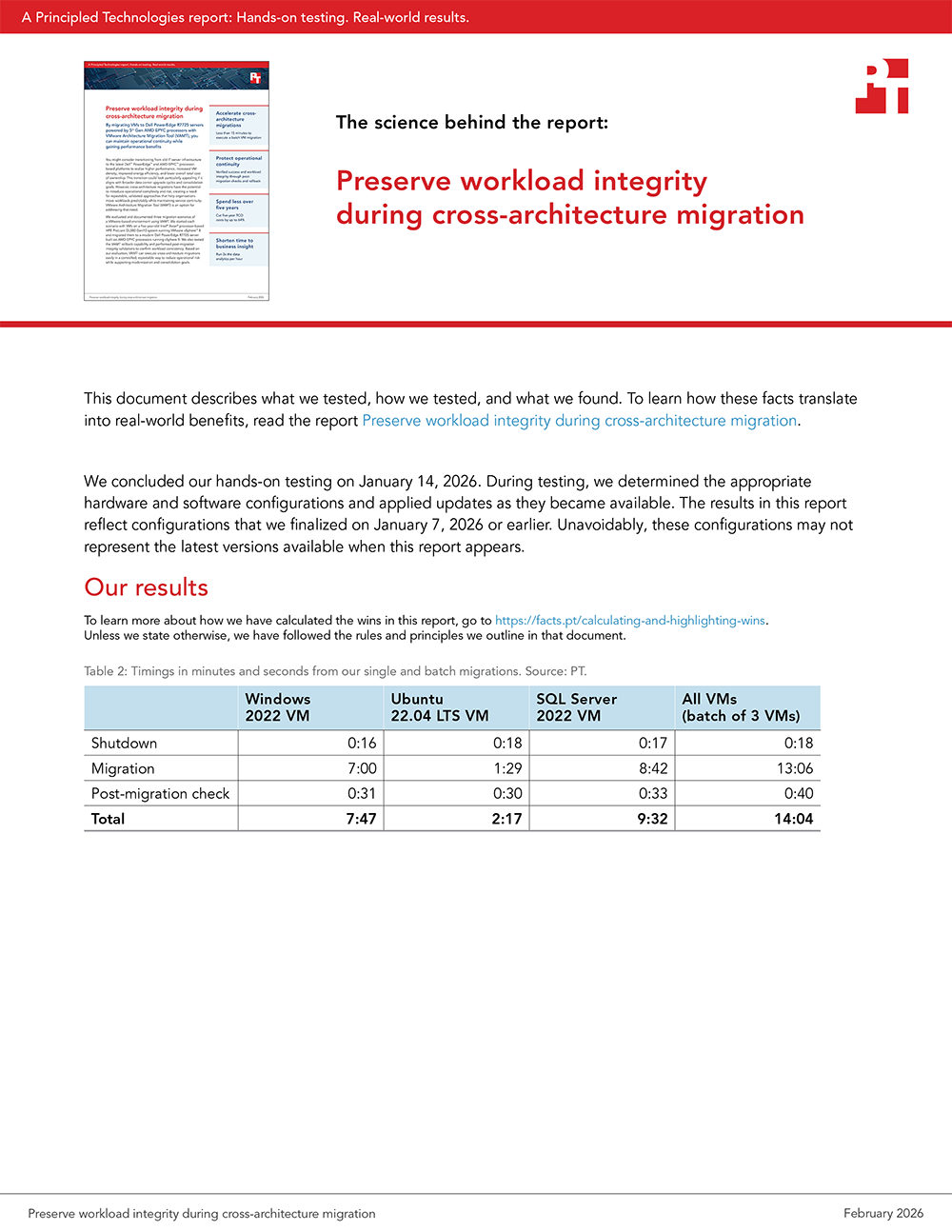
In our testing, shutting the VMs down for a batch migration was an automated process that took 18 seconds for our three VMs (Windows, Ubuntu, and SQL Server VMs). The migration of the three VMs took 13 minutes and 6 seconds in total without the automated shutdown.
6. Verify success with post-migration checks
Perform any workload-specific migration validations according to application best practices. As part of our validation testing, we verified UUIDs matched pre-and-post-migration, ran checks on our SQL database VM, and compared file hashes for a database backup. They all matched, indicating a successful migration and operational continuity.
In the event of an unsuccessful migration, VAMT allows for migration rollback (see Figures 3 through 6). Rollbacks enable you to revert a VM to its pre-migration state if it fails application-specific validation criteria. Rollback triggers could include failed power-on validation, VMware Tools status failures, unsuccessful data integrity checks, or performance regressions relative to predefined thresholds. For example, if a VM migrated from an Intel Xeon processor-based cluster to an AMD EPYC processor-based cluster fails post-migration validation due to a driver or guest OS issue, you can use VAMT to halt the workflow and restore the VM to its original host and configuration. This feature can save time while keeping workloads running to meet critical SLAs during troubleshooting.
The rollback script we used in testing. Source: PT.
Setting up the rollback with the tag readyToRollback. Source: PT
Kicking off a rollback. Source: PT.
A completed rollback. Source: PT.
In addition to manual validations you might perform, VAMT performs automated post-migration checks to ensure that the migrated VMs have powered up successfully and are responding to pings. In our batch migration, those automated checks took 40 seconds.
Hot tip: Post-migration checks (integrity checks, row counts, backup validation, etc.) can detect corrupted data pages or VM misconfiguration.
VAMT migration best practices
Treat migration as a controlled project: Run inventory and preflight checks, automate execution, and verify success.
Prioritize workload-specific validation for stateful services: Database checks are low-effort, high-value safeguards.
Use tags and a manifest-driven approach: This allows you to scale migrations while maintaining clarity and rollback readiness.
Test a migration first: Run end-to-end tests with representative workloads to validate the migration process, estimate timing, and verify scripts before migrating production systems. Additionally, you can add a whatIf option to your script to simulate the migration without actual execution.
Use change windows for scheduled migrations: If you need to schedule migrations, set explicit changeWindowStart values to automation scripts so they run during approved maintenance times. Note: At the time of our evaluation, the current version of the script utilized PowerShell 5.1 to execute scheduled migrations. To use the VAMT script, complete the prerequisite steps, such as installing the latest PowerCLI module, in a PowerShell 5.1 session. If you wish to use a different version of PowerShell, update the scheduled migration module of the VAMT script to call the correct executable.
Keep tags and state up to date: If a VM is re-migrated, remove obsolete tags (e.g., remove complete and reapply readyToMigrate) to avoid accidental skips.
What we found
Minimize operational and management risk with fast migrations
Table 1 shows our timings from the single and batch migrations. All the single-VM migrations took less than 10 minutes total, and a batch migration took less than 15, making it an easy task to fit in among other critical work.
Table 1: Timings in minutes and seconds from our single and batch migrations. Source: PT.
Windows 2022 VM
Ubuntu 22.04 LTS VM
SQL Server 2022 VM
All VMs (batch of 3 VMs)
Shutdown
0:16
0:18
0:17
0:18
Migration
7:00
1:29
8:42
13:06
Post-migration check
0:31
0:30
0:33
0:40
Total
7:47
2:17
9:32
14:04
Protect continuity with post-migration data integrity validation
We verified that our sample migration was successful by performing various VM integrity checks:
In our Windows and Ubuntu VMs, we compared storage volume UUIDs to show that they remained consistent across the migration.
In our SQL VM, we performed both a file hash check on a database backup and several SQL database checks to validate data integrity across the migration.
Windows and Ubuntu VMs
As Figures 7 through 10 show, the UUID of the Windows and Ubuntu VMs remained the same, indicating a successful migration and that the workloads using the VMs can continue to operate as they did pre-migration.
The pre-migration UUID check for our Windows VM. Source: PT.
The pre-migration UUID check for our Ubuntu VM. Source: PT.
The post-migration UUID check for our Windows VM. Source: PT.
The post-migration UUID check for our Ubuntu VM. Source: PT.
SQL Server VM
For our SQL Server database VM, we ran pre-migration integrity checks (DBCC CHECKDB) and row-count queries to validate application data continuity in our sample database. We also performed a file hash check on a SQL database backup. Post-migration, we performed the same checks to demonstrate the data remained intact post-migration (see Figures 11 through 18). The checks noted that the migration was a success and that the workloads using the database could run as they did before the migration.
A successful pre-migration DBCC CHECKDB. Source: PT
A successful pre-migration DBCC CHECKALLDB. Source: PT.
Our pre-migration SQL database row count. Source: PT.
Our pre-migration SQL Server file hash in PowerShell. Source: PT.
A successful post-migration DBCC CHECKDB. Source: PT.
A successful post-migration DBCC CHECKALLDB. Source: PT.
Our post-migration SQL database row count. Source: PT.
Our post-migration SQL Server file hash in PowerShell. Source: PT.
More VAMT features that can help your migrations
VAMT enterprise-grade capabilities
Through automation, validation, and controlled recovery, VAMT features can reduce operational and business risk for large organizations migrating VMs across CPU architectures.
Comprehensive pre-migration checks
Before initiating a migration, VAMT performs a series of checks to point out incompatibilities. These typically include CPU and platform compatibility validation and virtual disk formatting and accessibility checks. These checks prevent migrations that are likely to fail mid-process or produce unstable workloads. Pre-migration validation lowers the likelihood of unplanned downtime during architecture transitions.
Robust error handling
VAMT surfaces errors through detailed logging, checkpoint execution stages, and explicit failure states within the automation workflow. This capability offers traceability and auditability during infrastructure changes, common essentials of enterprise operational models.
Adopt additional availability strategies to help preserve service continuity
In addition to the tips and features previously mentioned, you can complement VAMT with other strategies to keep workloads and operations live and address different risks. These approaches help protect business-critical services, maintain SLAs during infrastructure transitions, minimize downtime, and segment risk.
VM redundancy
When migrating workloads to alternate infrastructure, redundancy can maintain secondary VM copies that can take over service when a primary instance becomes unavailable (such as during a cold migration). This is one option for migrating mission-critical workloads that have constant uptime requirements. This might require additional storage capacity, replication bandwidth, and operational oversight.
Load balancing
Load balancing distributes user or application traffic across multiple VMs to absorb disruptions during change windows. This can minimize user impact by shifting traffic away from migrating or degraded instances.
Dell PowerEdge and AMD boosted performance and reduced costs
Boost Oracle Database performance and reduce TCO by migrating to AMD EPYC processor-based Dell PowerEdge servers
Migrating from inefficient and outdated server infrastructure to a new AMD EPYC processor-based one delivers performance increases that can offer serious payoff for your organization. In a recent study, our testing showed that migrating from a five-year-old Intel Xeon Gold 6242 processor–based HPE ProLiant DL380 Gen10 to a Dell PowerEdge R7725 powered by 5th Gen AMD EPYC 9175F processors improves performance while enabling consolidation and operating-cost reductions.1 The PowerEdge R7725 completed more work faster, supported more virtual machines, and delivered substantially better energy efficiency—delivering both performance and TCO benefits.
Higher throughput and single-query speed: The PowerEdge R7725 completed 3x the query sets per hour and finished each query set 23.8 percent faster on average.
Greater VM density: The PowerEdge R7725 supported 6 VMs running the database workload—triple the number that the legacy HPE server could support.
Better power efficiency: The PowerEdge R7725 delivered 45.2 percent better power efficiency (queries/hour per watt) and, when comparing for equivalent database work, reduced power consumption by 31.1 percent.
Based on the database performance results in that study, we found that consolidating analytics workloads onto a single Dell PowerEdge R7725 with 5th Gen AMD EPYC 9175F processors delivers clear, quantifiable business value versus running equivalent workloads on three legacy HPE ProLiant DL380 Gen10 servers powered by Intel Xeon Gold 6242 processors. Over five years, the PowerEdge server can offer a lower total cost of ownership (up to 64 percent in our study)2 while increasing consolidation density and energy efficiency, freeing budget for strategic initiatives.
Consolidation: The PowerEdge R7725 supported six VMs while the legacy server supported two, which could enable an organization to replace three of the legacy HPE servers with one PowerEdge R7725 server.
Lower software licensing: By migrating to the new Dell server, total five-year software costs can drop from $3.1 million to slightly more than $1 million. This licensing reduction is the largest single contributor to TCO savings.
Reduced VMware costs: The five-year cost of VMware vSphere Foundation (after discount) falls from $51,840 to $17,280 with consolidation.
Smaller ongoing operating costs: Over five years, power and cooling costs decline from $8,943.20 to $7,019.80; data center space costs drop from $60,000 to $20,000; and maintenance/administration costs shrink from $21,621.80 to $7,207.30.
As you modernize your virtualized infrastructure, cross-architecture migrations from older Intel Xeon processor-based platforms to newer AMD EPYC processor-based environments can play an integral part in planned upgrade and consolidation strategies. We evaluated VAMT as an automated approach for performing cold VM migrations from a five-year-old HPE ProLiant DL380 Gen10 server with Intel Xeon Gold 6242 processors running VMware vSphere 8 to a Dell PowerEdge R7725 server with 5th Gen AMD EPYC 9175F processors running vSphere 9. We migrated three representative VMs—Windows Server, Ubuntu Linux, and Microsoft SQL Server—across single, batch, and scheduled workflows.
VAMT simplified migration across CPU architectures while preserving workload integrity and reducing operational risk. Additionally, we found that a batch migration of three VMs completed in less than 15 minutes. We also validated post-migration checks and rollback capability, confirming that pre- and post-migration checks matched. Our previous findings indicate potential benefits from the cross-architecture upgrade for modernization initiatives—when moving to the Dell PowerEdge R7725 with AMD EPYC processors, organizations could see up to 64 percent lower five-year costs and improved performance, driven by the consolidation of multiple older servers onto a single newer system. With VAMT, migrating from older, different processor architectures to newer, more powerful processors can be a simple and effective way to yield serious organizational rewards.
“Get quicker insights and save over the next five years by consolidating your Oracle Database workloads on the Dell PowerEdge R7725 with 5th Generation AMD EPYC processors,” accessed January 26, 2026, https://facts.pt/KW9Y5Wr.
“Get quicker insights and save over the next five years by consolidating your Oracle Database workloads on the Dell PowerEdge R7725 with 5th Generation AMD EPYC processors.”
This project was commissioned by Dell Technologies.
February 2026
Primary contributors
Tech: Jesse Louzon-Hadley
Writing: Nathan P.
Design: Jared White
PM: Greg Carrero
Developer: Bonnie B. Robertson
How we created this report
A PT team, which includes the contributors we’ve listed and others, created this report and performed the technical work behind it. We used AI to help create an outline for the report content and to edit some report text.
Principled Technologies is a registered trademark of Principled Technologies, Inc. All other product names are the trademarks of their respective owners.
Principled Technologies disclaimer
Principled Technologies is a registered trademark of Principled Technologies, Inc. All other product names are the trademarks of their respective owners.
DISCLAIMER OF WARRANTIES; LIMITATION OF LIABILITY: Principled Technologies, Inc. has made reasonable efforts to ensure the accuracy and validity of its testing, however, Principled Technologies, Inc. specifically disclaims any warranty, expressed or implied, relating to the test results and analysis, their accuracy, completeness or quality, including any implied warranty of fitness for any particular purpose. All persons or entities relying on the results of any testing do so at their own risk, and agree that Principled Technologies, Inc., its employees and its subcontractors shall have no liability whatsoever from any claim of loss or damage on account of any alleged error or defect in any testing procedure or result.
In no event shall Principled Technologies, Inc. be liable for indirect, special, incidental, or consequential damages in connection with its testing, even if advised of the possibility of such damages. In no event shall Principled Technologies, Inc.’s liability, including for direct damages, exceed the amounts paid in connection with Principled Technologies, Inc.’s testing. Customer’s sole and exclusive remedies are as set forth herein.



 Twitter
 Facebook
 LinkedIn
 Email
Email