
A Principled Technologies report: Hands-on testing. Real-world results.

Introducing a third platform, such as the new MacBook Neo, may multiply complexity, staffing demand, and support overhead
We quantify the IT labor and total cost of ownership (TCO) of supporting existing Windows and Chromebook deployments in K-12 districts, and measure the incremental burden of introducing a third device platform

Introducing macOS devices to a large K-12 district’s Windows and Chromebook fleet can increase total cost of ownership by $1.72M over three years*

Adding MacBook Neo devices to a Dell Pro Education 11 laptop and Dell Chromebook 14 fleet can increase fleet-wide security and network policy deployment time by 54% and double the time required for fleet-wide app updates, with both increases driven by the need to duplicate work across platforms*

Adopting a new platform can cost large K-12 districts an estimated 1,546 additional IT hours over three years, in device management alone*
*The model reflects a large K-12 district with a fleet of 46,000 devices: 42,000 Dell Chromebooks deployed to students and 4,000 Dell Pro Education laptops supporting teachers and staff. Over a three-year period, the district will migrate 23,000 of those devices to MacBook Neo, working toward a mixed-platform environment by the end of the transition.
Table of contents
Executive summary
Education procurement moves fast, and it can be challenging to make a buying decision given the wide range of factors necessary to consider in a K-12 environment. By the time a new platform crosses IT’s desk, they’re facing a different set of challenges: the operational reality of the systems they need to support.
For districts running Windows PCs and Chromebooks, introducing a third platform like the Apple MacBook Neo has the potential to multiply complexity, staffing demand, and support overhead. Our research and hands-on testing indicate that every procurement team already supporting Windows and ChromeOS should weigh these ramifications before signing up to support a third platform:
- Admin capacity: Adding a third operating system, like macOS, can strain IT workloads that are likely already at capacity. Retraining pulls admins away from pressing priorities and compounds the burden rather than spreading it.
- Staff familiarity: Your IT team has likely invested significant time developing, testing, auditing, and documenting workflows inside Intune and Google Admin consoles. Integrating macOS into these workflows may require new tooling, and without it, your team risks compliance and safety gaps.
- End-user disruption: Students, teachers, and office staff know Chromebooks and Windows PCs. Swapping student Chromebooks for MacBook Neo devices requires a macOS learning curve for everyone new to the OS, including teachers troubleshooting on the fly, that has the potential to drive help desk volume. The hardware can compound the problem: the MacBook Neo ships with 8GB of unified memory and no upgrade path.1 While 8GB exceeds the 4GB configuration common in some school Chromebook deployments, the comparison has limits. Chromebooks offload most processing to the cloud, while the MacBook Neo may be running some workloads locally. Students or teachers running heavier workloads or keeping multiple tabs open simultaneously may encounter performance lag, depending on how they’re using the device.2
- Additional licensing and support costs: Every platform you add brings its own cost structure. macOS deployments typically require AppleCare+ for Schools to cover repairs and hardware support, unless your team handles repairs internally or absorbs costs case by case. Mobile device management (MDM) licensing is a separate consideration: depending on your existing infrastructure, adding macOS devices many require additional per-device licensing or a new platform entirely. Because the MacBook Neo accesses Google services through a browser rather than native apps, your existing endpoint security, identity management, or content-filtering tools may not provide coverage, forcing you to procure new ones. These costs recur annually and scale with device count.
Key outcomes
- In testing commissioned by Dell Technologies, Principled Technologies proved that large K-12 school districts running mature Intune- and Google Admin-managed environments could face compounding operational challenges if they introduce macOS as a third platform.
- For a large district with 46,000 Dell Chromebooks and Dell Pro Education laptops supporting students, teachers, and staff, transitioning 23,000 of those devices to MacBook Neo devices over three years could add $1.72M to total cost of ownership, driven primarily by device acquisition, licensing, support, and management overhead.
- Introducing macOS to an existing Windows and ChromeOS deployment would increase fleet-wide security and network policy deployment time by 54% and double the time required for fleet-wide app updates, both a direct result of the need for duplicate work across platforms.
- Managing a third OS could consume an estimated 1,546 additional IT hours over three years in setup effort and ongoing maintenance.
What we evaluated
The decision to add a new platform to a K-12 environment is about much more than the devices themselves. Each new OS you add to your environment expands your operational footprint: additional or even different MDM licensing, software compatibility testing, added staffing demands, and possible retraining cycles. This report quantifies what those decisions cost in IT labor hours and total cost of ownership.
1. Top-line IT effort differential across three platforms
Intune works for small and large MacBook Neo deployments, but managing Windows and macOS devices side by side has the potential to increase IT workload, split app management across two systems, and force help desk retraining. Add Chromebooks you’re managing via Google Admin, as many school districts do, and you’re juggling three separate workflows. For larger or student-facing Windows fleets, pairing Intune and Microsoft Defender for Endpoint extends content filtering and web protection to macOS.3 Districts willing to go deeper might consider Jamf, a macOS-native MDM that provides content filtering through Jamf Safe Internet, Apple Classroom integration, and end-of-year wipe and re-enrollment through its Return Service feature.4 Jamf integrates with Intune, so districts have the option to retain their Microsoft Identity Infrastructure while managing macOS devices through a platform built for it.5 But it still adds another workflow and a new console. Jamf is purpose-built for Apple devices only and cannot manage Windows or ChromeOS endpoints on its own, meaning districts with mixed device fleets must maintain Intune and Google Admin regardless to cover those platforms.6,7 In contrast, Intune can manage macOS devices directly.8
The licensing costs and management overhead we describe are not hypothetical. They compound across a fleet as devices turn over. This report models a phased transition: shifting approximately one-sixth of the fleet to MacBook Neo devices each year over three years, and tracing what that shift would mean in practice.
Our hands-on testing, which included device setup and ongoing maintenance tasks assumes a baseline environment where students use Dell Chromebooks and teachers and staff use Dell Pro Education laptops. We measured the additional IT effort expended when introducing MacBook Neo devices to either fleet by comparing management tasks across Dell Pro Education laptop and MacBook Neo fleets in an Intune-managed environment, alongside a Dell Chromebook 14 fleet in a Chrome-managed environment.
2. Three-year cost delta: modeled against a representative district fleet
IT salaries, device procurement and support costs, and MDM licensing costs become budget reality when applied to a real fleet at real labor rates. We built the cost model in this report in two stages. The first stage establishes a time baseline: how long does it take IT staff to perform common management tasks for a Dell Pro Education laptop, a Chromebook, and a MacBook Neo? The second stage applies that baseline to a representative district fleet, comparing two scenarios over a three-year horizon:
- Current two-platform environment: new Dell Chromebooks for incoming students and Dell Pro Education laptops for eligible staff, supported within an existing Windows and Chrome management infrastructure
- Three-platform option: the same student and staff devices, with MacBook Neo devices added as an option, and the management, licensing, and support costs that introduction carries
We used the following large K-12 school district population and cost window in the first scenario:
- 42,000 student Dell Chromebooks
- 4,000 teacher/staff Dell Pro Education laptops
- Three-year cost horizon
The second scenario adds the MacBook Neo devices to both the student and teacher/staff fleets, staggering the implementation over three years and ending with 50 percent MacBook Neo devices.
The IT burden: What it actually takes to manage three platforms
IT admins build their management infrastructure to fit the needs of their school district’s devices, which means that any newly introduced devices that don’t fit the existing support structure can cause trouble. Administrators need to reconfigure, retool, and integrate additional management solutions into their workflows.
Help desk volume often spikes at deployment and again each semester as new students encounter the fleet. Onboarding hours, IT orientation time, and macOS-fluent support staff rarely appear in a device proposal, but those costs can surface quickly in the first quarter.
The following sections document the IT work required to introduce MacBook Neo devices alongside existing Chromebooks and Windows devices. We performed and timed each task as a real-world team would do it, noting any portal dependencies or configuration requirements that add friction. Where applicable, tasks could be accelerated using PowerShell or other scripting tools -- those approaches could meaningfully reduce admin time but are not reflected in our timings or cost calculations.
Those measurements feed directly into our cost model. We multiply task times by frequency across the fleet over three years, then convert the result to a standard IT labor rate. Districts that want to apply their own labor rates or fleet numbers can find the raw time and step counts in the science behind the report.
Onboarding MacBook Neo devices
In a Windows and ChromeOS district, IT can largely automate device onboarding. Autopilot handles Windows end to end with no administrator interaction. ChromeOS needs only Google Admin credentials at the login screen.
macOS adds a bit of friction upfront. IT must synchronize devices between Apple Business Manager (ABM) and Intune before zero-touch provisioning is available to end-users. Once that sync is complete, the end user enrolls using IT-provided credentials. Apple also requires end users to opt in for Location Services at first boot, a prompt no policy can suppress, and enforces a hard boundary between what an MDM can control silently and what requires user action.11,12
For districts running all three platforms, macOS becomes a parallel workflow, with separate tooling and platform constraints that differ from the devices you already manage. To show what that looks like in practice, we walked through zero-touch enrollment on all three platforms, covering enrollment verification, compliance confirmation, and device naming and asset tagging. While most of our hands-on testing targets the entire fleet, the numbers below reflect one device, not a full fleet rollout.
From a single-user perspective, adding a macOS device to a fleet is roughly on par with adding a Windows device—but more work than adding a Chromebook.
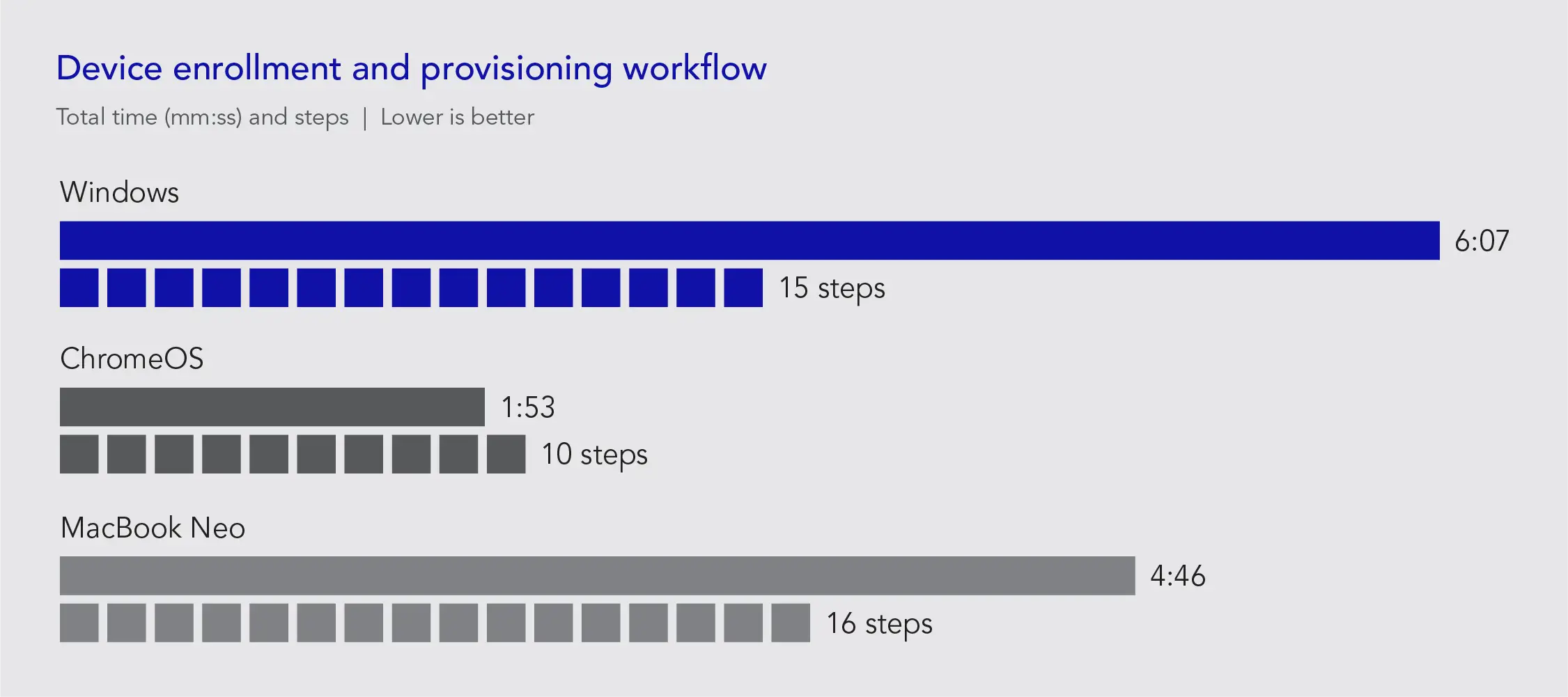
Note that the graphs in this report use different scales to keep a consistent size. Please be mindful of each graph’s data range as you compare.
Security policy deployment
In many K-12 environments, security policy deployment is a recurring workflow, not a one-time event. Back-to-school configuration cycles, OS updates, and evolving cybersecurity guidance from organizations like K12 SIX and CISA can drive multiple rounds of policy updates throughout the year.
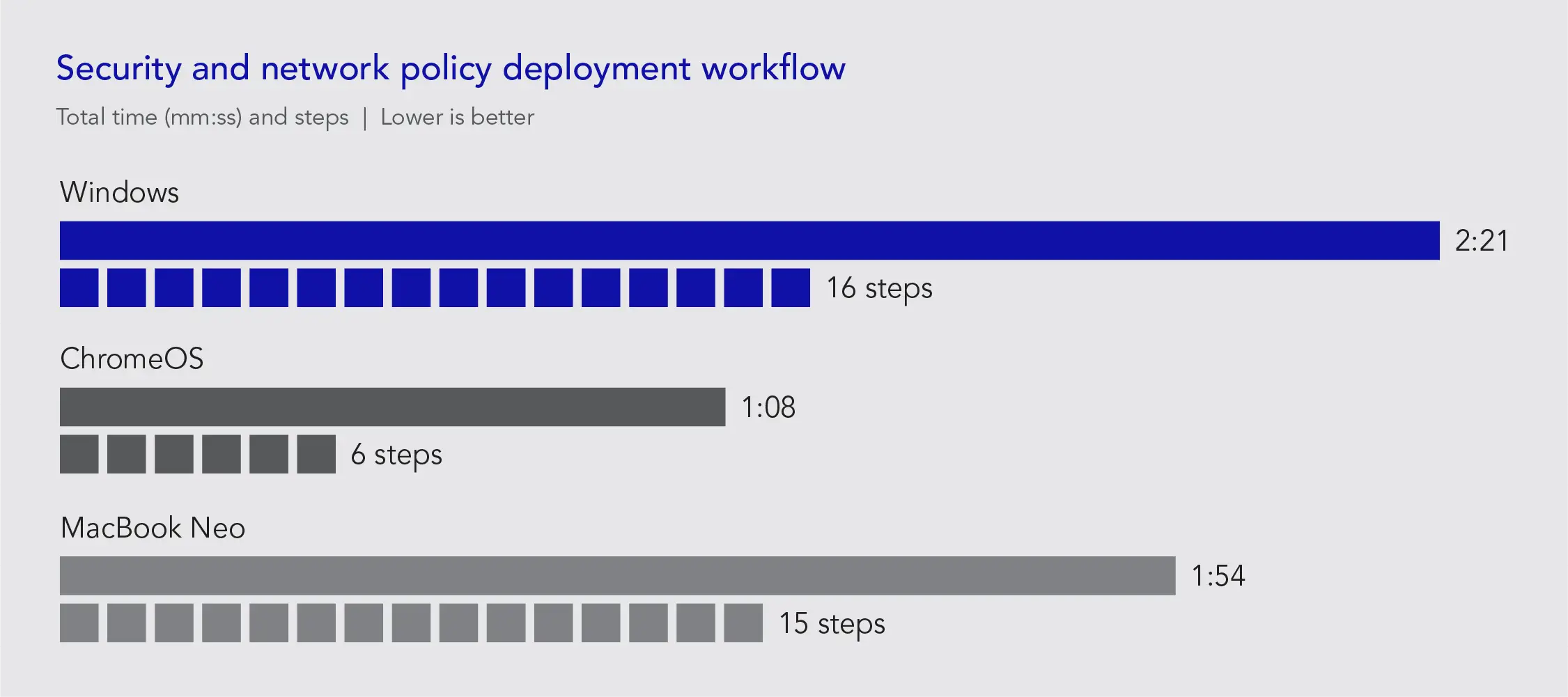
To measure the administrative burden that adding macOS imposes for essential security efforts, we captured the time and steps required to complete a security and network policy deployment with two tasks: deploying a screen-lock policy and pushing a Wi-Fi configuration profile fleet-wide.
Adding macOS to an existing fleet increased fleet-wide security and network policy deployment time by 54% and added 15 steps to the workflow each time you execute this task.
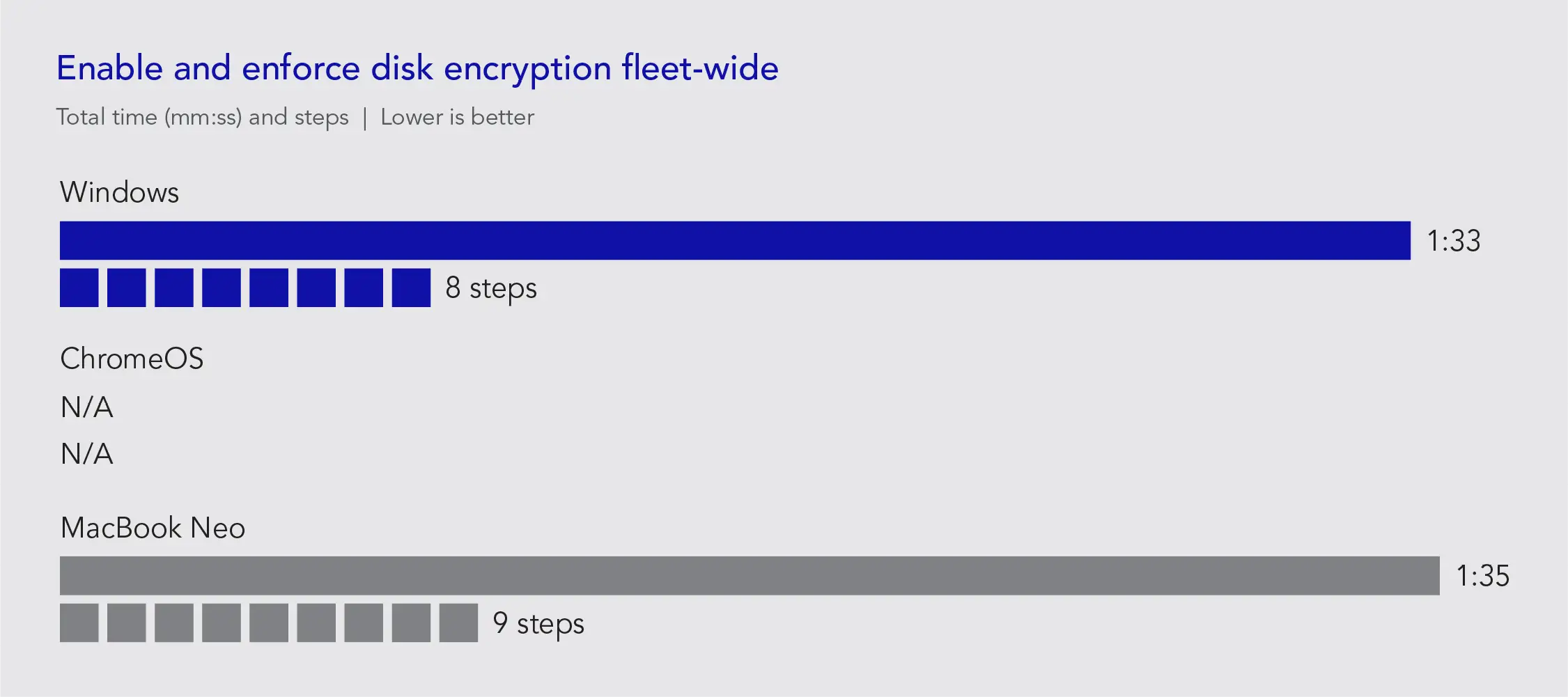
But what about data protection? In a Windows and ChromeOS district, IT staff only enable disk encryption on Windows devices. ChromeOS encrypts by default and can’t be disabled, so administrators simply verify compliance in Google Admin rather than configuring anything. Ensuring data is protected on macOS devices adds another task that lands squarely in IT’s court. While this task is usually a once-and-done activity, doubling the effort is a micro-frustration added to the larger load.
Adding macOS to an existing fleet doubled the effort for a fleet-wide disk encryption task that only needs to be done once.
Multiplied across several policy deployment events per year, per-task security-based time differences can compound into real annual staffing costs.
Application management
Application management runs throughout the school year, triggered by new tool adoptions, security removals, vendor update releases, and annual software refresh cycles. It is also one of the highest-frequency IT workflows: app updates follow regular patch cycles, emergency removals can surface at any time, and updates alone can account for a significant share of annual IT labor. That frequency makes per-task time differences more consequential than in lower-cadence workflows like enrollment or security policy deployment.
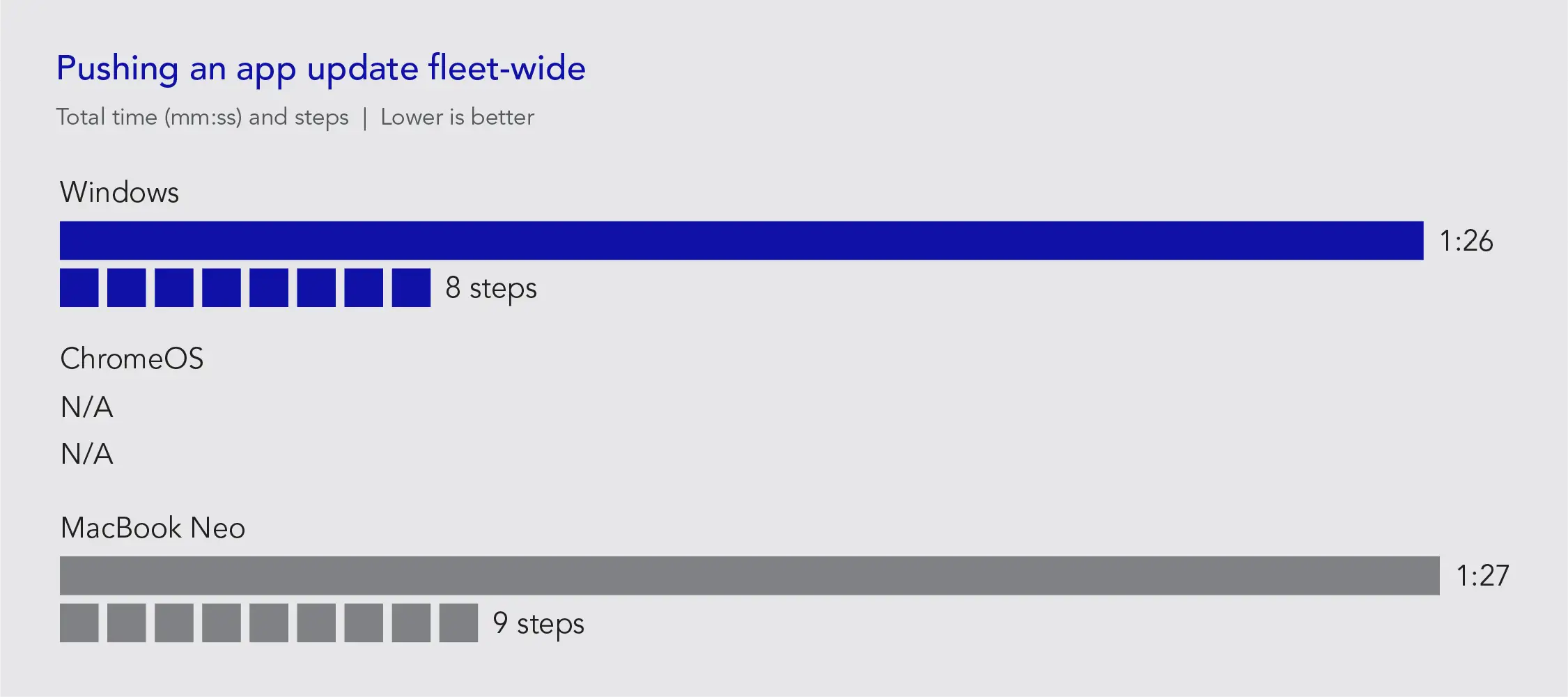
To measure the added burden of a third OS, we completed four common tasks across all three platforms, combining silent app deployment and remote app removal into a single fleet-wide workflow. App updates apply only to Windows and macOS; ChromeOS manages this automatically.
Onboarding macOS into a Windows-first Intune environment created a parallel management burden, doubling application management overhead in Intune.
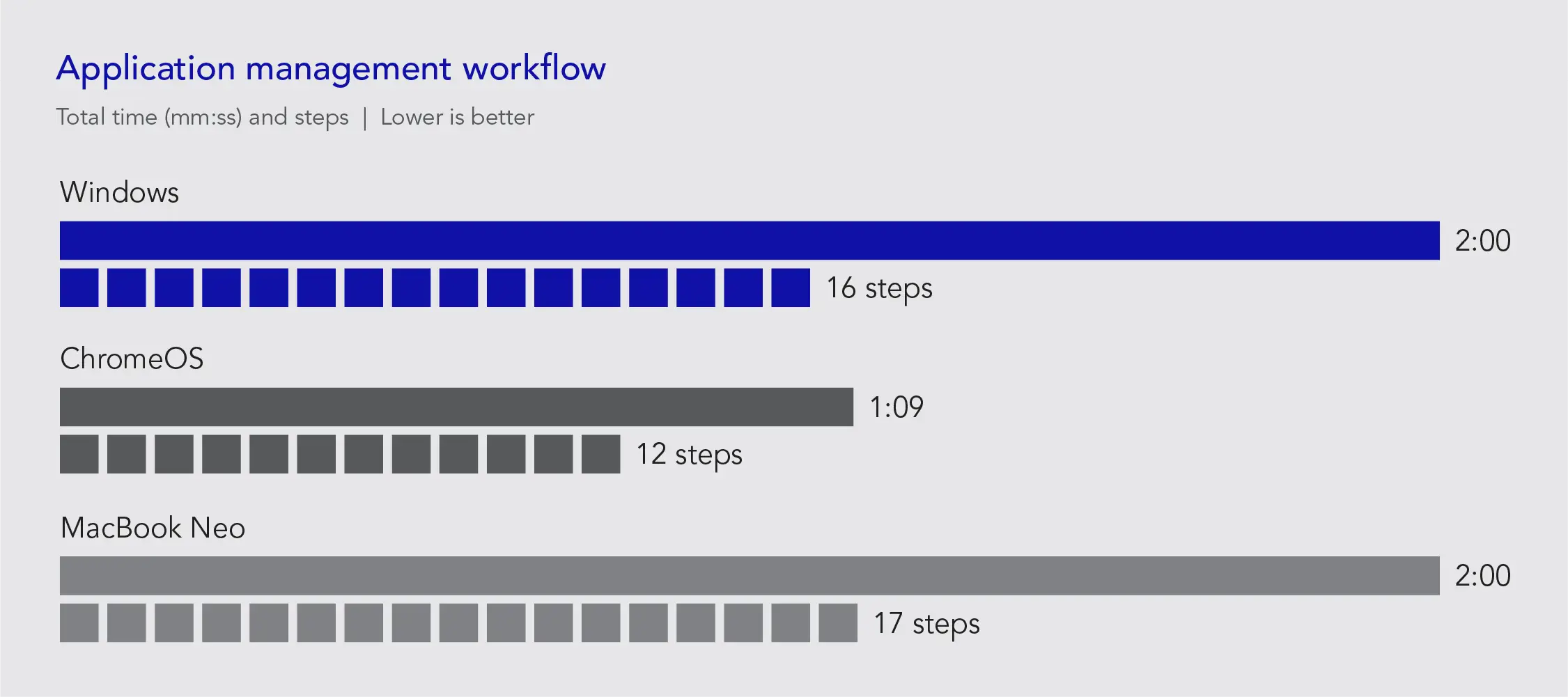
Adding macOS doubled the time for fleet-wide app updates due to work duplication.
Ongoing maintenance
Ongoing maintenance represents the highest-frequency category in this report and the most direct driver of cumulative IT labor cost. Tasks range from weekly OS compliance checks to annual end-of-year device refreshes. To measure the burden each platform imposes, we captured time and steps for six representative tasks across Intune and Google Admin:
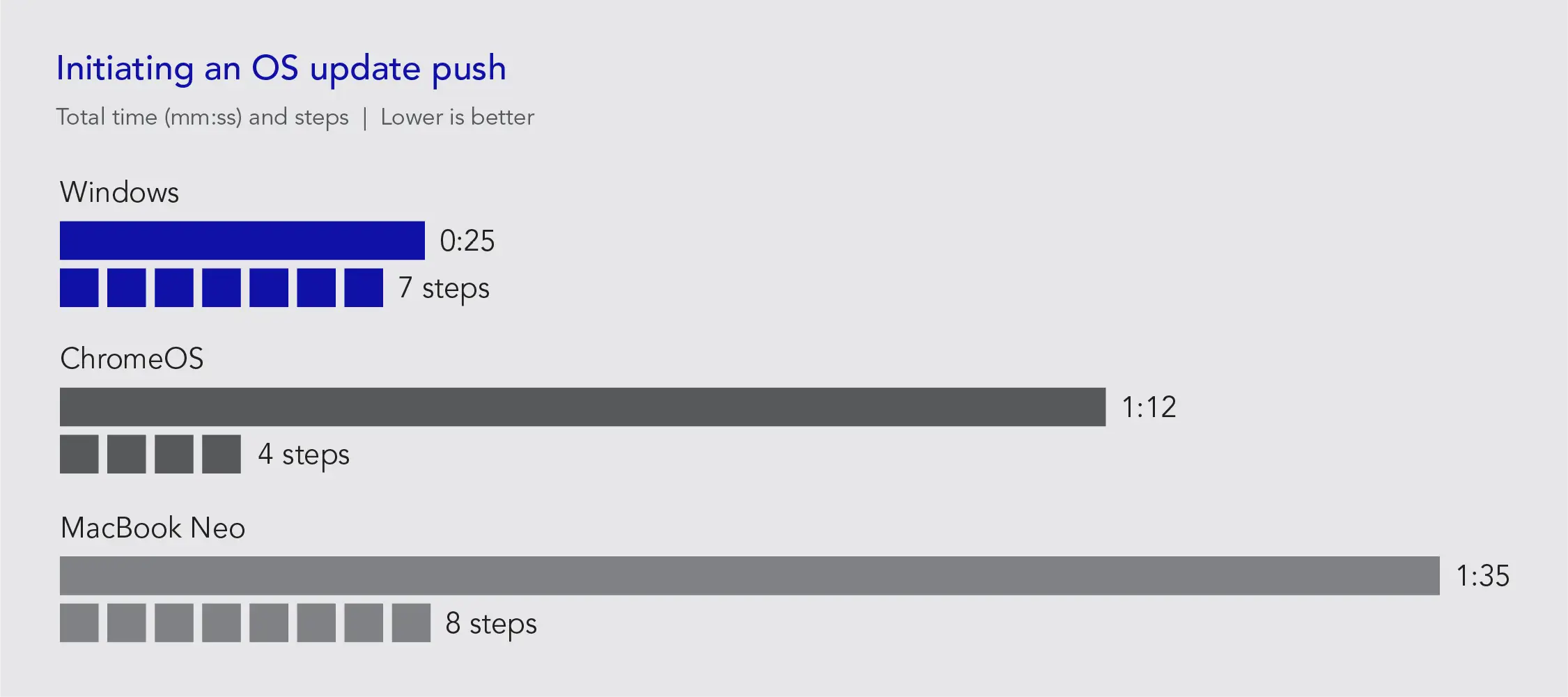
- Initiating an OS update push to a defined device group and confirming deployment began
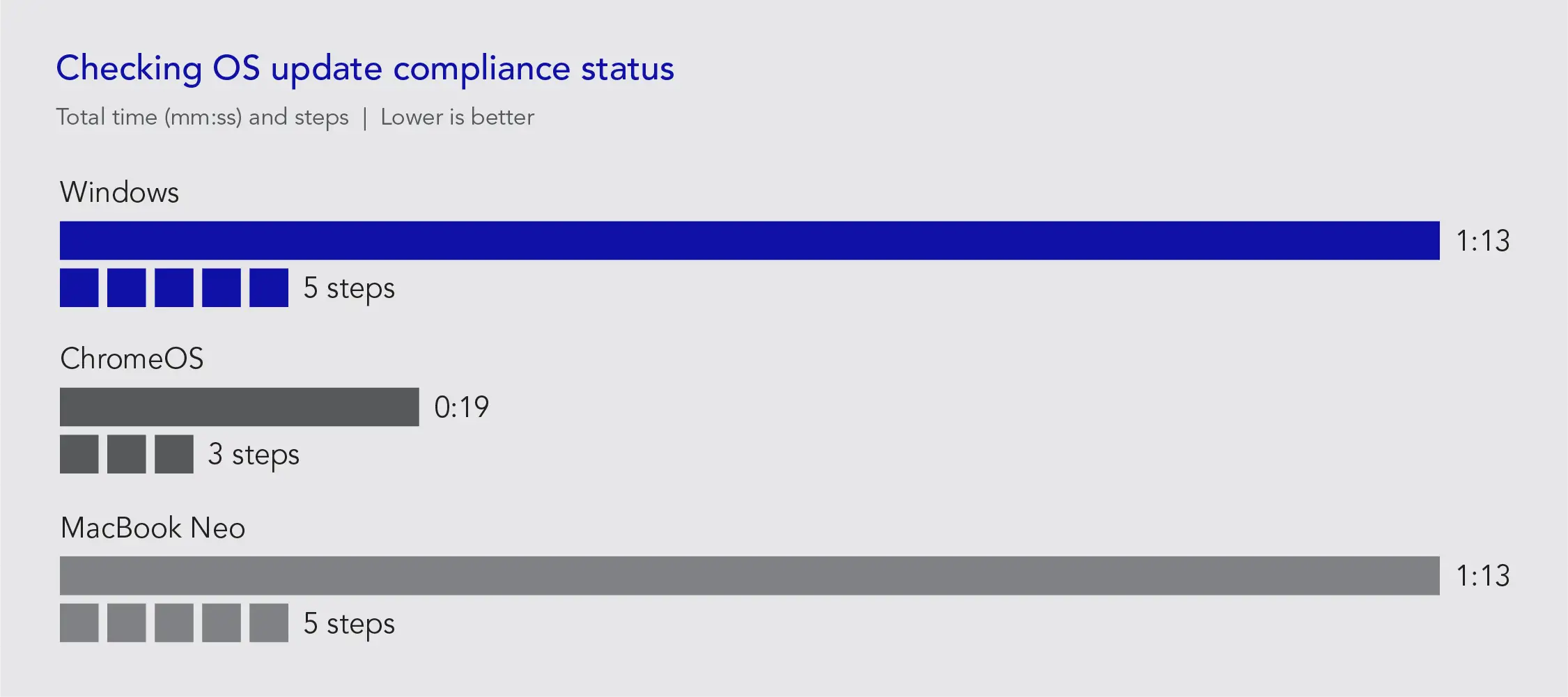
- Checking OS update compliance status across the fleet
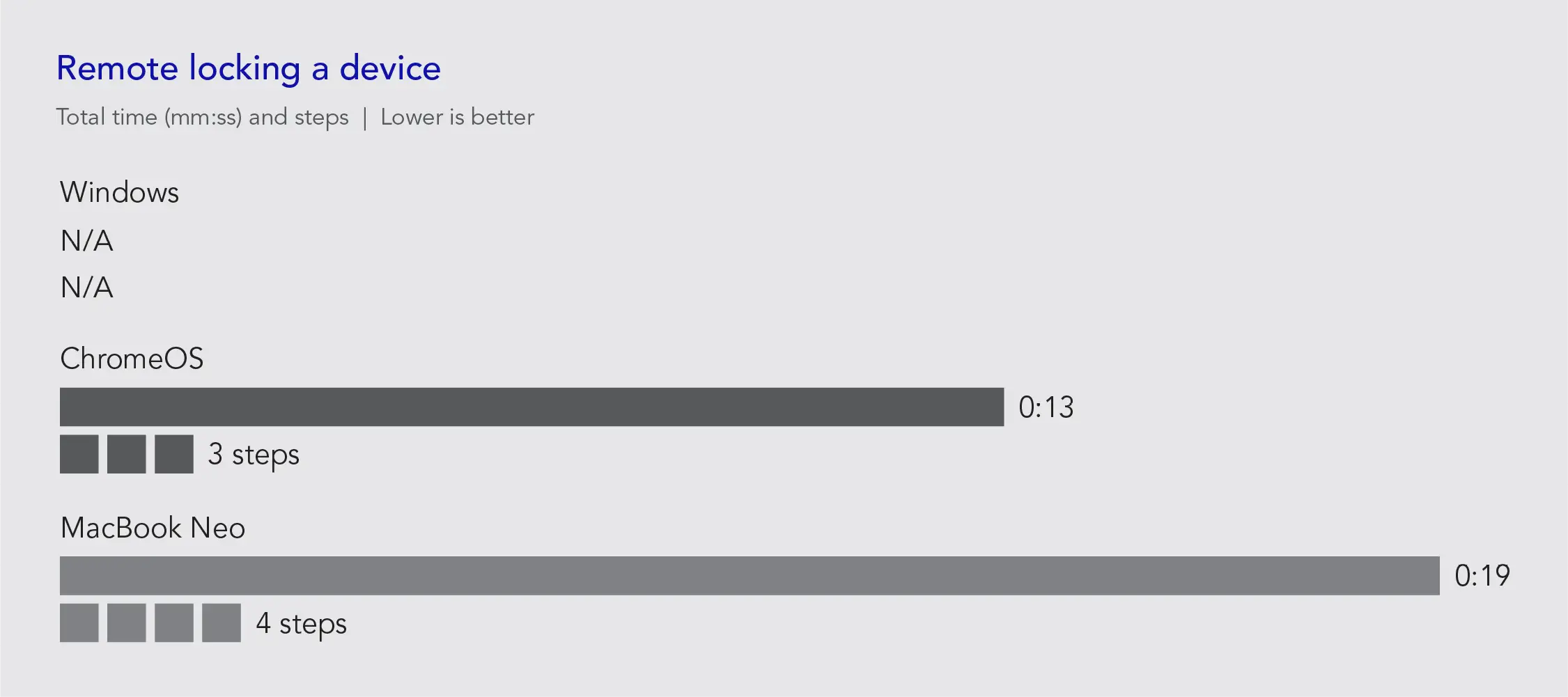
- Remotely locking a device for ChromeOS and macOS (note that remote lock is unavailable for Windows laptops23)
- Remotely wiping a device and confirming re-enrollment
- Completing an end-of-year device refresh by wiping, re-enrolling, and reassigning a device to a new user
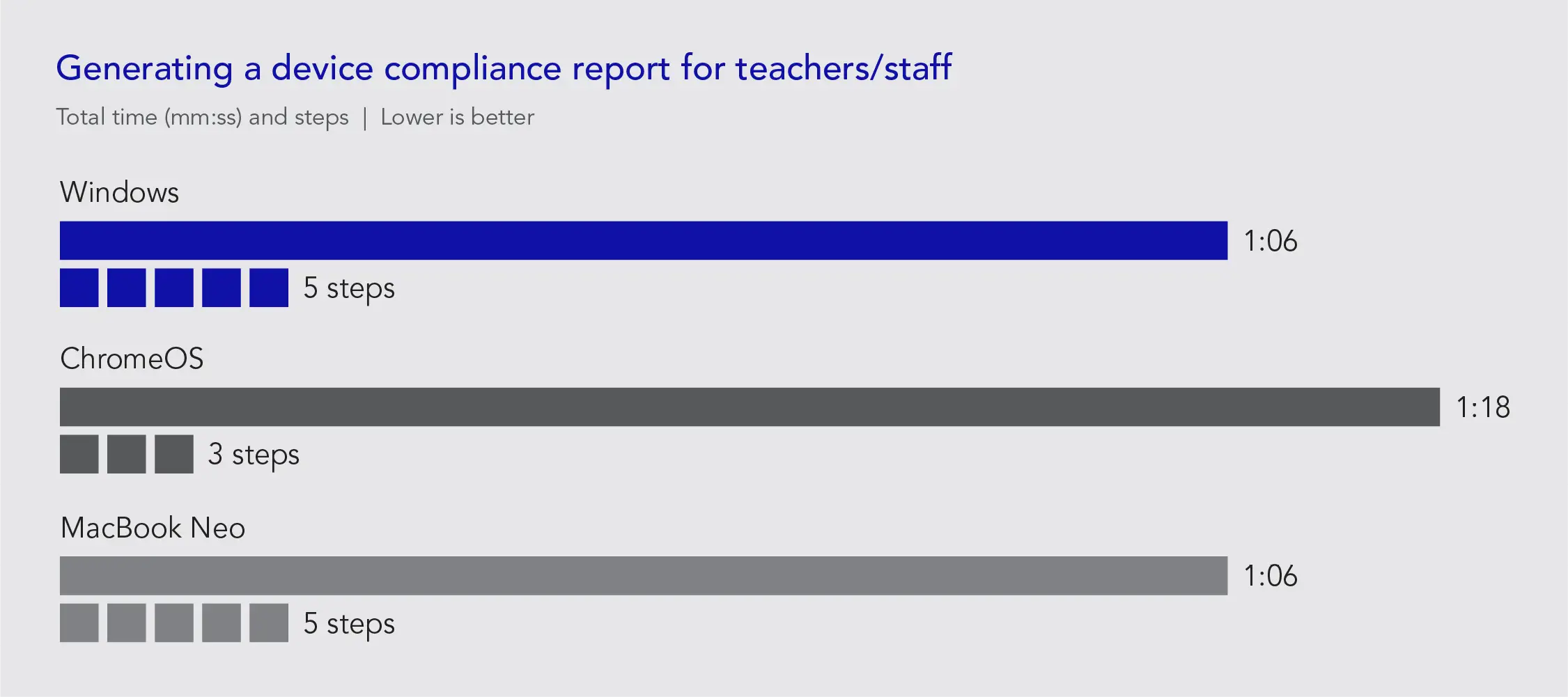
- Generating a device compliance report scoped to the teacher and staff segment
macOS took almost as long to initiate an OS update push as Windows and ChromeOS combined.
Administrators completed the same Intune-based compliance check twice: once for Windows, once for macOS.
macOS supported remote lock, but took slightly more effort than ChromeOS.
macOS required over a minute of post-wipe/device refresh reactivation time.
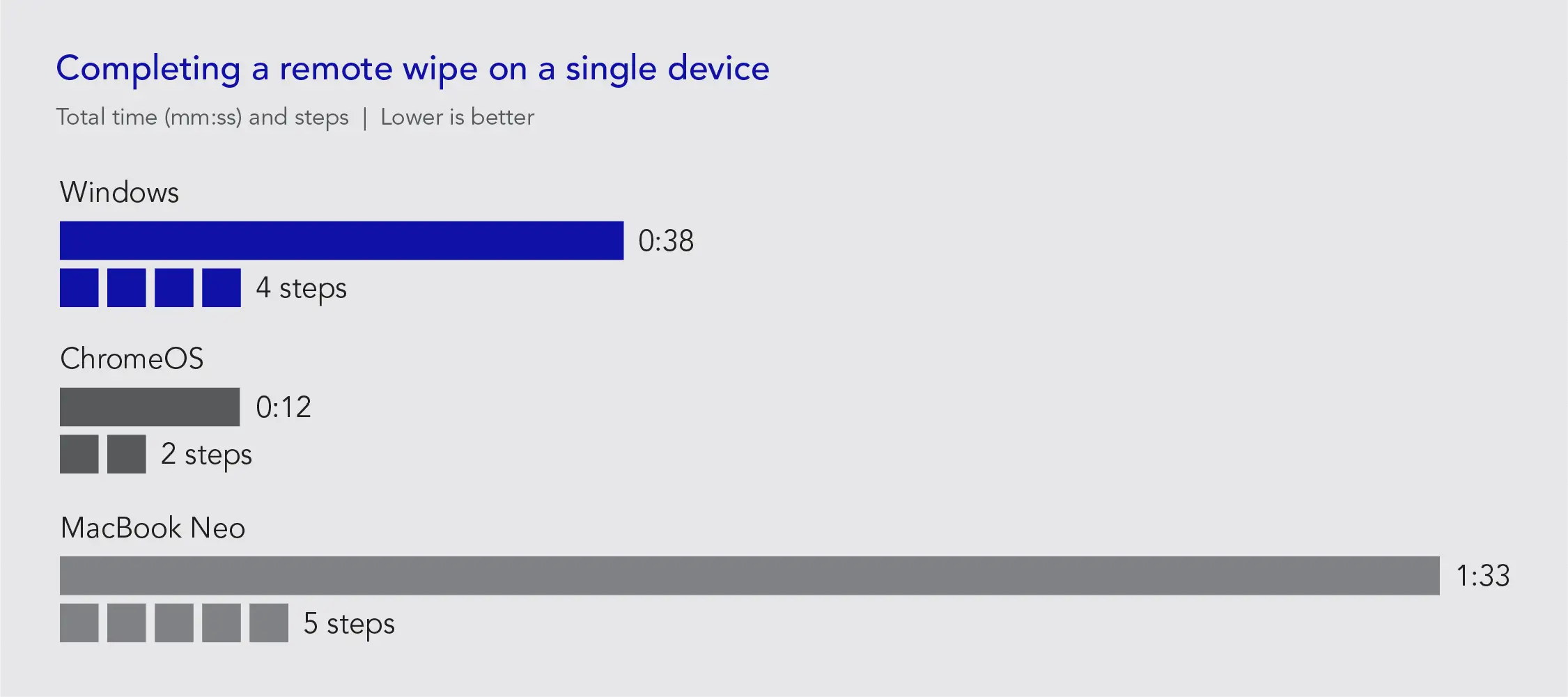
Completing an end-of-year refresh on a fleet of devices: According to Microsoft, IT admins can perform bulk wipes on up to 100 Intune-managed devices at the same time.24 However, while we were able to perform this action on the Windows device under test, we were unable to replicate it on the MacBook Neo. By contrast, ChromeOS wipe time does not increase as device count scales. You can see our results and extrapolations in the science behind the report.
Adding macOS to the report generation workflow doubled the effort in Intune.
From minutes to money: Translating task time into annual IT cost
These figures reflect IT labor costs for managing the district modeled throughout this report. The two-platform (Windows + ChromeOS) environment assumes the district is supporting 42,000 Dell Chromebooks and 4,000 Dell Pro Education laptops. The three-platform (Windows + ChromeOS + macOS) environment transitions half of the devices to macOS over three years: 21,000 student MacBook Neo devices and 2,000 teacher/staff MacBook Neo devices, resulting in a fleet of 21,000 Dell Chromebooks, 2,000 Dell Pro Education laptops, and 23,000 MacBook Neo devices.
To calculate costs in our model, we assumed an hourly rate of $50.00 for a computer tech.25 We applied the time it took us to complete each management task in the previous section against our estimated annual frequency of each task to produce total IT hours and costs for both scenarios. Results scale with fleet size and feed directly into the cost model in “The hidden budget line that changes the conversation” later in this report.
| Windows + ChromeOS | Windows + ChromeOS +macOS | Difference | |
|---|---|---|---|
| Three-year IT hours | 491.95 | 2,038.42 | +1,546.47 |
| Three-year cost at $50 per hour | $24,597.50 | $101,921.15 | +$77,323.65 |
For a full time and cost breakdown by task and frequency, see the K-12 endpoint cost model summary in Appendix E.
MacBook Neo friction points that affect end-users daily
If you make the choice to switch your personal device to one with a new-to-you operating system, you’ll likely encounter both things you enjoy about the new OS and frustrations with it. When you make the change for a whole fleet of devices in a K-12 environment, however, the impact is bigger. For school systems that currently use Chromebooks and Windows machines, adding the MacBook Neo as a third platform can create significant friction.
- 1. Instead of an M-series chip, the MacBook Neo runs full macOS on an iPhone chip (A18 Pro) with 8 GB of unified memory and no upgrade path.26 Unlike Chromebooks and many Dell Education devices, which offload most processing to the cloud, the MacBook Neo handles more locally on hardware that you can’t expand.27,28,29
- 2. Full workflow relearning can hit students harder than staff. Students cycle through multiple classrooms and contexts daily. Students accustomed to school Chromebooks may have to adapt to a new OS while simultaneously hunting for familiar features and shortcuts, pulling focus away from instruction time. Unlike staff who can practice on their own schedule, some students aren’t able to take their devices home. This means that some students encounter the unfamiliar device under time pressure and in assessed environments, where tech issues can affect their morale and their grades.
- 3. The 8GB RAM ceiling may present challenges for students and teachers. A student juggling a research tab, Google Doc, video assignment, LMS, and background music can exhaust available memory before the period ends, triggering compression and swap that slows the device mid-assignment.30 It can be tricky for teachers, too, who run Google Meet or Zoom for parent conferences alongside curriculum tabs, gradebooks, and media players simultaneously. That workload alone can saturate available memory, triggering macOS swap and compression that slows the device mid-conference. The other devices we tested have upgrade paths to more than 8 GB of RAM, but the MacBook Neo has RAM soldered to the board and no upgrade path, meaning there is no opportunity to increase RAM.31
- 4. You may need extra dongles or hubs. The MacBook Neo ships with USB-C ports only. If a teacher or student needs to connect projectors, displays, USB drives, printers, or card readers to their laptops directly, that means the classroom also requires a dongle or USB-C hub. That accessory requirement would add between $10 and $60 per device or per classroom. In contrast, the Dell Windows and ChromeOS devices we tested include both USB-A and USB-C ports, so students and teachers can plug in peripherals directly, with no adapters required.
The hidden budget line that changes the conversation
Time measurements become actionable when they carry a dollar figure. This section builds a transparent cost model, giving district finance and IT leadership a clear view of the budget impact of introducing the new MacBook Neo into a large fleet.
Cost model assumptions
These calculations model a large K-12 district currently running a two-platform environment consisting of 42,000 Dell Chromebook 14 student devices and 4,000 Dell Pro Education 11 laptops. The district replaces a third of its fleet each year. The three-platform scenario introduces MacBook Neo devices into the same Intune- and Google Admin-managed environment, with half of each eligible cohort migrating to Apple devices over three years.
Fleet-level three-year total cost comparison
Table 2 includes device, support, spares, planning, training, and IT labor costs scaled to the district fleet and projected across a three-year horizon. Every line item belongs in the same budget conversation as device acquisition cost, including the ones that rarely appear in vendor proposals.
| Cost category | Two-platform Dell only option | Three-platform Dell + Apple option |
|---|---|---|
| Devices + support (three-year per-unit cost × fleet) | ||
| Staff: Dell Pro Education (4,000 / 2,000 fleet) | $3,614,240.00 | $1,807,120.00 |
| Staff: Apple MacBook Neo (0 / 2,000 fleet) | - | $1,793,940.00 |
| Students: Dell Chromebook (42,000 / 21,000 fleet) | $26,352,060.00 | $13,176,030.00 |
| Students: Apple MacBook Neo (0 / 21,000 fleet) | - | $13,041,000.00 |
| Spares (device + support cost only) | ||
| Dell Pro Education spares (200 / 100 devices) | $121,918.00 | $60,959.00 |
| Dell Chromebook spares (2,100 / 1,050 devices) | $1,206,303.00 | $603,151.50 |
| Apple MacBook Neo spares (3,450 devices) | - | $2,080,350.00 |
| Platform migration costs | ||
| Solution planning | $7,500.00 | $27,500.00 |
| IT staff training | $0 | $43,654.00 |
| IT admin labor (device management) | $24,597.50 | $101,921.15 |
| Teacher training for a third platform | $0 | $320,000.00 |
| Three-year total | $31,326,618.50 | $33,055,625.65 |
| Savings with two-platform solution | $1,729,007.15 5.5% less than three-platform | - |
For a full breakdown, see the K-12 endpoint cost model summary in Appendix E.
Physical suitability for K-12 environments
Physical durability and repair are additional cost considerations. For durability, we scoured manufacturer specifications and trusted sources to estimate how each device will hold up in school district conditions.
Durability
Dell Pro Education and Chromebook devices are engineered for tough school days. Each passes 17 MIL-STD-810H military-grade tests covering desk falls, micro-drops, vibrations, humidity, temperature extremes, and rough treatment before reaching market.32 Reinforced design details, including rubberized edges, spill-resistant keyboards, and 180-degree lay-flat hinges rated for thousands of open/close cycles, back up the spec with physical durability features.33
Apple MacBook Neo is a consumer MacBook that, according to John Temus, Apple’s senior vice president of Hardware Engineering, “delivers the magic of the Mac at a breakthrough price.”34 We could find no military-standard claim for the MacBook Neo or any consumer MacBook. Apple emphasizes recycled materials rather than ruggedization specs.35
Warranty and repairability
When districts buy devices, repairability and warranty coverage determine how long these devices last and how much it costs to keep them running. The ideal device is easy and inexpensive to repair, so it can stay in service longer.
Dell builds its Pro Education and Chromebooks with that in mind. They have shared parts across models, customer-replaceable batteries with tool-less access, and up to five years of warranty coverage. Meanwhile, the Apple MacBook Neo is the most repairable Mac in 14 years, earning a 6/10 iFixit repairability score, with modular USB-C ports, screw-mounted battery, and no parts-pairing restrictions.36 That said, you can’t upgrade RAM and storage after purchase, repairs require a specialty driver some shops don’t stock, and wiping a device without signing out first can trigger Activation Lock and leave it unusable.37
| Dell Pro Education | Dell Chromebook | MacBook Neo |
|---|---|---|
| Warranty and support | ||
|
Up to 5 years ProSupport available; optional 24/7 monitoring & managed IT38 |
Up to 5 years ProSupport and Managed IT Services available39 |
Up to 4 years AppleCare+ for Schools offers 3- and 4-year plans; no 5-year path40,41 There may also be a per-incident fee ($49-$149) |
| Battery access | ||
|
Tool-less and customer-replaceable Bottom door (CS) panel; customer-replaceable42 |
Customer-replaceable Parts sold directly via Dell Parts store43 |
Screw-mounted 18 screws on tray (vs. adhesive in prior models); improves over previous gen but not tool-less44 |
| Parts strategy | ||
|
Shared parts Common components across models; reduces spare stock cost45 |
Shared parts Same portfolio strategy; service manual published Feb 202646 |
Model-specific No cross-model shared parts program; parts available via Apple Self Repair |
| RAM / Storage | ||
|
Varies by configuration Check specific model spec sheet |
Varies by configuration Check specific model spec sheet |
Soldered — not upgradeable 8GB RAM; 256GB or 512GB SSD fixed at manufacture47 |
| Keyboard repair | ||
| Not independently documented | Not independently documented |
Complex Touch ID model: 41 screws + adhesive tape Base 256 GB model (most common education purchase): 45 screws48,49 |
| Activation Lock / MDM | ||
|
No equivalent risk Standard enterprise MDM; no device-level lock-out on resale |
No equivalent risk |
Unresolved risk Devices tied to iCloud accounts; unreleased locks render working units unsalvageable50 |
| Documentation | ||
| Service Manual + Setup/Spec Guide available51 | Service Manual, Setup/Spec Guide, Statement of Volatility — all updated Feb 202652 | Apple repair manual available day one of launch53 |
If you’re not able to repair the MacBook Neo yourself and it requires repair under warranty, the device has to go through Apple: to an Apple Store, an authorized repair shop, or the Apple mail-in depot.54,55 While there is no official information on turnaround times, three to five business days is a general jumping-off point.56
Districts that want to handle repairs in house have to qualify for the Apple Self-Servicing Account program, which requires a minimum of 1,000 Apple devices, certified technicians, dedicated workspace, and a line of credit tied into Apple’s service system.59,60 Many districts won’t meet that bar, but those that try to navigate AppleCare claims without it face real financial risk: One documented case saw a district incur $32,000 in unexpected charges from submission errors alone.61
The Dell service model is structurally different. ProSupport Plus provides next-business-day onsite repair after remote diagnosis, meaning a technician arrives at the school rather than the device leaving it.62 The Dell Education portfolio is designed with shared components across models, and Dell sells customer-replaceable parts, including batteries, directly through the Dell Parts store, enabling districts to maintain an on-site spare parts depot.63,64
Key takeaways
- macOS duplicates work your team already does for Windows. Intune supports macOS alongside Windows, but almost every management task, from pushing updates to wiping devices, requires a separate run through Intune for macOS. That duplication added 54 percent to fleet-wide security and network policy deployment time and doubled the time required for fleet-wide app updates in our testing.
- Browser and app policy on macOS requires hand-written configuration files. Windows and ChromeOS handle this through searchable GUI consoles. macOS requires manually authored PLIST files for third-party applications, with no built-in validation step to catch errors before deployment.
- APNs certificate mishandling can force a full fleet re-enrollment. IT must renew the Apple push notification certificate annually with the same Apple ID credentials. Missing the renewal window or using different credentials triggers forced re-enrollment across every macOS device under that certificate, a risk Windows and ChromeOS do not carry.
- Many districts may not qualify to repair MacBook Neo devices in house. Apple Self-Servicing Accounts requires a minimum of 1,000 Apple devices, certified technicians, dedicated workspace, and a line of credit. Districts that submit AppleCare claims without meeting that threshold face real financial exposure: one documented case resulted in $32,000 in unexpected charges from submission errors alone.
- Depot repair means devices leave the building for up to 14 days. For a 500-device fleet, that turnaround requires keeping roughly 75 spare units on hand to maintain daily coverage, at a 15 percent spare ratio vs. 5 percent for Dell. Dell offers 24/7 service and Dell ProSupport Plus sends a technician to the school instead, keeping devices in the building and the spare pool smaller.
- Platform complexity is a staffing cost. Three-platform device management adds an estimated 1,546 IT hours over three years, translating to $77,323 in labor costs for the district we modeled in this report. Every one of those hours displaces something else: a repair, a deployment, a classroom support call. That cost doesn’t appear on a device spec sheet, but it shows up in the budget and compounds as the fleet grows.
- The 8GB RAM ceiling has the potential to be a classroom problem, not just a spec footnote. The MacBook Neo ships with 8 GB of unified memory soldered to the board, with no upgrade path. A student running a browser, LMS, video assignment, and document simultaneously can exhaust available memory before the period ends. Unlike the MacBook Neo, Dell Pro Education and Chromebook configurations are available with higher memory options for demanding workloads.
- The MacBook Neo carries no military-grade durability rating. According to Dell, Dell Pro Education and Chromebook pass 17 MIL-STD-810H tests covering drops, vibration, humidity, and temperature extremes. Apple makes no equivalent claim for the MacBook Neo.
Summary
The data tells a clear story: adding the MacBook Neo to a Windows and ChromeOS district is not a device decision. It is a platform decision, and it carries a platform’s worth of overhead.
Nearly every task we measured took longer when macOS entered the picture. Policy changes that take minutes on Windows or ChromeOS add time on macOS, every cycle. End-of-year device refreshes that complete in seconds on Windows and ChromeOS could require over a minute more on macOS due to post-wipe reactivation. App updates, a recurring IT workload, add steps on macOS every single time.
Individually, the differences look small. Across a large fleet, repeated over three years, they add up to real cost: 1,546 additional IT hours worth an estimated $77.3K in IT labor costs for the school system we modeled in our report. And every hour spent authoring configuration files, managing Apple’s service requirements, or chasing depot repairs is an hour not spent keeping the rest of the fleet running.
The total cost difference is larger. For the large K-12 district (46,000 Chromebook and Windows laptops) we modeled, transitioning half the fleet (23,000 devices) to macOS can increase the total cost of ownership by $1.72M over three years. This figure accounts for devices, support, MDM tools, Microsoft Office for teachers and staff, Google Workspace for students, staff training, and ongoing management costs.
The districts most likely to feel that cost are the ones least equipped to absorb it. Small IT teams, tight repair budgets, and high device-to-staff ratios are the norm in K-12, not the exception. Adding a third platform does not spread the workload, it stacks on top of it.
The science behind the report
In this section, we list our complete results and describe the solutions on which we tested and our test methodologies.
We concluded our hands-on testing on May 20, 2026. During testing, we determined the appropriate hardware and software configurations and applied updates as they became available. The results in this report reflect configurations that we finalized on May 15, 2026 or earlier. Unavoidably, these configurations may not represent the latest versions available when this report appears.
Appendix A: MacBook Neo methodology
Overview
We completed all of the Apple® MacBook® Neo testing in Intune.
Configuring Intune
After creating a Microsoft Office 365 Business account and a Microsoft Azure account, we completed the following tasks and configured our Microsoft Intune environment to allow for Windows Autopilot deployments.
Adding the Intune Plan 1 and Entra Suite licenses
- Using the admin account, log into Azure.
- Under Azure services, select Entra ID.
- Navigate to License.
- Under Manage, select All products, and click +Try/Buy.
- Select the free trial Intune Plan 1 Trial license.
- Complete steps 1 through 4 again, select the free trial Entra Suite Trial license, and click Activate.
Adding Intune and configuring the MDM scope
- Within the left Entra ID menu, select Entra ID, and click Mobility (MDM and MAM).
- Click +Add application.
- Select Microsoft Intune, and click Add.
- Click Microsoft Intune.
- On the Configure page, configure the following, and click Save:
- MDM user scope: All
- MAM user scope: All
Adding users
- From the Azure portal, under Azure Services, select Entra ID.
- In the left pane under Manage, select Users.
- Click + New user, and click Create new user.
- In the first block, enter a username, and after @ in the block, choose the proper domain name from the dropdown menu.
- For Name, enter the desired name as required, and select your Password options. If you choose Auto-generate Password, check Show Password.
- Copy the password to the clipboard, store it somewhere safe, and click Create.
Managing licensing on the target users
- Under Users, select the recently created user.
- In the left pane, under Manage select Licenses, click +Assignments, select both Entra Suite and Intune Plan 1, and click Save.
Creating Autopilot deployment profiles
- Navigate to the Microsoft Intune Admin Center endpoint.microsoft.com.
- Navigate to Devices > Windows > Windows enrollment > Deployment Profiles.
- Select Create profile > Windows PC. Fill in the required information, and click Next.
- Enter a name for the profile.
- Leave Convert all targeted devices to Autopilot on No, and click Next.
- Leave defaults, changing only Allow pre-provisioned deployment to Yes, and Apply device name template to Yes.
- For the naming profile, enter System-%RAND:6%
- Click Add groups, select desired group, and click Select.
- Click Next.
- Click Create.
Configuring Intune for Apple Business Manager integration
Creating the Apple MDM Push Certificate
- Within Intune, select Devices > Enrollment, and click the Apple tab.
- Click Apple MDM Push Certificate.
- Check the I agree box.
- To download your CSR, click the link. When prompted, save the file as IntuneCSR, and click Save.
- To create your MDM push Certificate, click the link.
- In the newly open tab, log in with your Apple ID credentials for managing ABM.
- Click Create a Certificate.
- Check the I have read and agree to these terms and conditions box, and click Accept.
- Click the Choose File button, select the IntuneCSR file you just downloaded, and click Upload.
- To save the new push certificate, click Download.
- Accept the default name MDM_Microsoft Corporation_Certificate, and click Save.
- Go back to the Intune portal. Within the Configure MDM Push Certificate, enter the Apple ID you used to create your certificate.
- To browse for the .PEM file you just created, click the folder icon, select it, and click Open.
- Click Upload. Intune will present a notification that the push certificate has been created. You can view the certificate information at the top of the panel, including the Active status indication. In the upper right of the panel, click X.
Creating the Enrollment Program Token
- Within the Apple tab, in Intune, select Devices > Enrollment, and click Enrollment program tokens.
- Click Create.
- Check the I Agree box, and click the link for Download your public key.
- To download the IntuneKey to your local system, click Save.
- Switch over to the Apple Business Manager tab in your browser. If necessary, log in.
- Click on your user name at the bottom left of the page, and select Preferences.
- Beside Device Management Services, click Add.
- For Service Info, provide a name for the MDM you’re connecting. Under Service settings, click the Upload Certificate link and browse to the location where you saved the IntuneKey.pem file, select it, and click Open.
- Click Save.
- At the top of the page, click Download.
- Save the token to your local system.
- Switch over to the Intune tab in your browser.
- Enter the Apple ID you used to log into Apple Business Manager when you created the token.
- To browse for the token file you just downloaded, click the folder, and click Next.
- Click Create.
Creating an Enrollment Profile
- Within the Apple tab in Intune, select Devices > Enrollment, and click Enrollment program tokens.
- Click the Intune token.
- Under Manage, select Profiles, and click Create profile >macOS.
- Provide a name for the profile, and click Next.
- Use the User affinity pull-down menu, and select Enroll with User Affinity.
- Use the Authentication method pull-down menu, and select Setup Assistant with modern authentication.
- For Await final configuration, accept the default Yes.
- Use the Locked enrollment pull-down menu, and select Yes.
- Click Next.
- Provide a department name and department phone number.
- To hide all the screens that would appear in setup assistant, click Toggle All, and click Next.
- Use the Create a local admin account pull-down menu, and select Yes.
- Use the Create a local primary account pull-down menu, and select Yes.
- Set the account type to Standard, select Yes for Prefill account info, and click Next.
- Click Create.
- Once the profile has been created, click the Set default profile icon in the profiles section.
- Use the macOS Enrollment profile pull-down menu, select the profile you just created, and click OK.
Configuring a macOS configuration policy in Intune
Creating a macOS group in Intune
- Within the left menu in Intune, click Groups.
- Click New Group.
- Name the group MacBook Neos, and change the Membership type to Dynamic Device.
- Under Owners, click the link, select an administrative account as the owner, and click Select.
- Under Dynamic device members, click Add a Dynamic Query. Click the Property pull-down menu, and select deviceOSType. Click the Operator pull-down menu, and select equals. Under Value, enter macMDM in the input box. To see the Rule Syntax and enable the Save button, press tab twice, and click Save.
- Click Create.
Creating a macOS policy in Intune
- Within the left menu in Intune, select Devices.
- Click Configuration, and select Create >New Policy.
- Use the Select platform pull-down menu, and choose macOS. Use the Profile type pull-down menu, and select Templates. From the list, select Software updates, and click Create.
- Provide a name for the policy, and click Next.
- Using the pull-down menus, adjust the settings for Critical updates, Firmware updates, and Configuration file updates to Download and Install. Using the schedule type pull-down menu, select Update during scheduled time, choose the check updates target time window, and click Next.
- Under included groups, click Add groups, check the MacBook Neos box, click Select, and click Next.
- Click Create.
Performing device enrollment and provisioning
Synchronizing Intune and Apple Business Manager
- Log into Apple Business Manager.
- Select Devices.
- Locate and select the newly registered device. To quickly locate our target device, we used Neo as a filter.
- In the upper-right corner of the far-right panel, click the ellipses, and select Assign Device Management.
- Select your Intune instance for MDM, and click OK.
- Log into Intune.
- Within the Apple tab in Intune, select Devices > macOS devices > Enrollment, and select Enrollment program tokens > {token name} > Manage > Devices > Sync. The manual sync will take about 15 minutes.
- Once the sync has completed, power on the MacBook.
Performing zero-touch enrollment of a new MacBook Neo device (performed by end user)
- Power on the MacBook Neo.
- From the menu, select a Wi-Fi network, and click Restart.
- Select United States, and click Continue.
- Click Continue.
- Click Not Now.
- Select Wi-Fi, and click Continue.
- Enter the password, and click Join.
- Click Enroll.
- Enter the credentials provided by your IT organization, and click Next. When prompted, enter the password, and click Connect.
- At Create a Mac Account, re-enter the password provided by your IT organization, and click Continue.
- Using current location, toggle the Set time zone automatically, click Turn On Location Services, and click Continue.
Verifying enrollment and compliance
- Within the left menu in Intune, click Devices, and click All devices. The device’s screen shows compliance and device state (managed).
Applying device naming convention and asset tag
- Within Intune, click Devices, and select All devices.
- Click the system you want to edit.
- In the Properties tab, click Edit.
- Change the device name to the asset tag or naming convention you want to apply, and click Save.
Performing security policy deployment
Deploying a new security policy
- Within Intune, click Endpoint Security.
- Under Manage, select Firewall, and click Create policy.
- Use the Platform pull-down menu, and select macOS. Use the Profile pull-down menu, select macOS Firewall, and click Create.
- Provide a name for the policy, and click Next.
- Toggle Enable Firewall to True. Use the Allow Signed pull-down menu, and select True. Use the Allowed Signed App pull-down menu, and select True. Add a BundleID by clicking +Edit instance. Toggle Allowed to True, enter the Bundle ID (such as com.google.Chrome), and click Next.
- Under Scope tags, click Next.
- Under Included Groups, click Add groups, select the group or groups you want to add, click Select, and click Next.
- Review the information, and click Create.
Deploying a Wi-Fi configuration profile
- Within Intune, click Devices. Under Manage Devices, select Configuration.
- On the policies tab, select Create >New Policy.
- In the right panel, select macOS for the platform, and select Templates for profile type. Under template name, select Wi-Fi, and click Create.
- Provide a name for the Wi-Fi profile, and click Next.
- For Deployment Channel, select Device Channel.
- For Wi-Fi type, select Basic.
- Enter the SSID for the Wi-Fi network, and leave the defaults disabled.
- For Security type, select WPA/WPA2-Personal, and enter the Pre-shared key (password) for the target Wi-Fi network.
- Click Next.
- Under Included Groups, click Add groups, select the group or groups you want to add, click Select, and click Next.
- Review the information, and click Create.
Enabling and enforcing fleet-wide disk encryption
- Within Intune, click Devices, and click the macOS panel.
- Click Configuration, and select Create > New Policy. Under Profile type, select Settings Catalog, and click Create.
- Provide a name for the profile, and click Next.
- Click Add Settings, expand Full Disk Encryption, click FileVault, and check the boxes beside Enable, Defer, Force Enable in Setup Assistant, Show Recovery Key, and Use Recovery Key.
- Expand FileVault Recovery Key Escrow, and select Location.
- In the main panel:
- Set the location as /var/db/FileVaultPRK.dat.
- Set Use recovery key to Enabled.
- Set Show recovery key to Enabled.
- Set Force Enable in Setup Assistant to True.
- Set Defer Force at User Log in Max Bypass Attempts to 0.
- Set Defer to Enabled.
- Set Enable to On, and click Next.
- Under Scope tags, click Next.
- Under Included Groups, click Add groups, select the group or groups you want to add, click Select, and click Next.
- Review the information, and click Create.
Performing application management
Deploying a required app silently to all devices
- Within Intune, click Apps.
- Click the macOS panel.
- Click Create.
- Select Line-of-business app, and click Select.
- Click select app package file, browse to the .PKG file you want to deploy, click Open, and click OK.
- Provide a publisher for the app, and toggle Install as managed to Yes. Remove all files except the one application you want to manage, and click Next.
- Under Assignments, locate the Required section, and click Add group.
- Choose the target group, click Select, and click Next.
- Review, and click Create. The application will automatically deploy to all targets in the group.
Removing a deployed app remotely
- Within Intune, click Apps.
- Click the macOS panel.
- Click the app you want to remove.
- Under Manage, click Properties, scroll down to Assignments, and click Edit.
- Click the ellipses, and select Delete from the target group.
- Under Uninstall, click Add Group.
- Select the uninstallation target group, and click Select.
- Click Review, and click Save. The application will be removed the next time the system checks in.
Updating a deployed app across the fleet
- Within Intune, click Apps.
- Click the macOS panel.
- Click Create.
- Select Line-of-business app, and click Select.
- Click select app package file, browse to the .PKG file you want to deploy, click Open, and click OK.
- Provide a publisher for the app, toggle Install as managed to Yes, toggle Ignore App version to No, remove all files except the one application you want to manage, and click Next.
- Under Assignments, locate the Required section, and click Add group.
- Choose the target group for the application, click Select, and click Next.
- Review, and click Create. The application will be automatically deployed to all targets in the group.
Pushing a driver or firmware update fleet-wide
- Within Intune, click Devices. Under By platform, click macOS.
- Click Configuration, and select Create >New Policy. Under Profile type, select Settings Catalog, and click Create.
- Name the profile Update to 26.5 - DDM and click Next.
- Click Add Settings, expand the Declarative Device Management (DDM) category, select Software Update, and click Select all these settings and notifications. In the upper right of the Settings Picker panel, click X.
- Complete the information for Software Update. (For the details URL, we used https://developer.apple.com/documentation/macos-release-notes. For Target Build Version, we used 25F71.) Enter a target date and time, enter the Target OS Version (we used 26.5), and click Next.
- In Scope tags, click Next.
- For assignment, under Included groups, click Add groups, check the Mac Endpoints box, click Select, and click Next.
- Click Create, click Review, and click Save.
Performing ongoing maintenance
Pushing an OS update to all devices
- Within Intune, click Devices. Under By platform, click macOS.
- Click Configuration, and select Create >New Policy. Under Profile type, select Settings Catalog, and click Create.
- Name the profile MacOS DDM and click Next.
- Click Add Settings, expand the Declarative Device Management (DDM) category, select Software Update, and click Select all these settings and notifications. In the upper right of the Settings Picker panel, click X.
- Complete the information for Software Update. (For the details URL, we used https://developer.apple.com/documentation/macos-release-notes. For Target Build Version, we used 25F71.) Enter a target date and time, enter the Target OS Version (we used 26.5), and click Next.
- In Scope tags, click Next.
- For assignment, under Included groups, click Add groups, check the Mac Endpoints box, click Select, and click Next.
- Click Create.
Checking OS update compliance status across the fleet
- Within the left menu in Intune, click Reports.
- Under Reports, expand device management, and click Apple updates.
- Click the reports tab, and select Apple software update report.
- Click Generate report.
- To download the results into a .CSV file, click Export.
Remotely locking a device
- Within the left menu in Intune, click Devices, and select All devices.
- Click the target macOS device.
- Use the Secure pull-down menu, and select Remote Lock.
- Click Remote lock device. The generated PIN listed beside the Remote Lock Action can be used to restore access to the system.
Remotely wiping a device and confirming re-enrollment
- Within the left menu in Intune, click Devices, and select All devices.
- Click the target macOS device.
- Use the Remove data pull-down menu, and select Wipe.
- Check the I Understand box, and click Wipe. In the far upper right menu, provide a recovery PIN, and click Wipe. The device is already connected through Apple Business Manager, and upon reactivation (when connected to a Wi-Fi network) will automatically be available for re-enrollment.
- When the system finishes rebooting, to reactivate the MacBook Neo, select a wireless network or connect a cable.
Generating a device compliance report for teacher/staff
- Within the left menu in Intune, click Reports.
- Under Reports, click Device Compliance.
- Click Reports, and select Device compliance.
- Use the OS pull-down menu, select only macOS, and click Generate Report.
- To download the results into a .CSV file, click Export.
Appendix B: Dell Pro Education 11 methodology
Overview
We performed all of our Dell Pro Education 11 laptop testing in Intune.
Configuring Intune
Creating Autopilot deployment profiles
- Navigate to the Microsoft Intune Admin Center endpoint.microsoft.com.
- Navigate to Devices > Windows > Windows enrollment > Deployment Profiles.
- Select Create profile > Windows PC. Fill in the required information, and click Next.
- Enter a name for the profile.
- Leave Convert all targeted devices to Autopilot on No, and click Next.
- Leave most defaults, except:
- Change Allow pre-provisioned deployment to Yes.
- Change Apply device name template to Yes.
- For the naming profile, enter System-%RAND:6%
- Click Add groups, select desired group, and click Select.
- Click Next.
- Click Create.
Performing device enrollment and provisioning
Performing zero-Touch enrollment of a new Windows 11 device (performed by end user)
- Press the power button on the laptop. Wait for the boot menu and Windows loading screens to complete.
- Select United States as the country, and click Yes.
- Accept the US keyboard, and click Yes.
- When prompted for a second keyboard layout, click Skip.
- Select a wireless network to connect with, click Connect, and click Next.
- Wait for Checking for updates to complete, then accept the terms of the license agreement.
- When prompted to name the device, click Skip for now.
- On the Let’s set things up for your work or school screen, enter the username for the user created above.
- Enter the user password.
- Using the authenticator application, confirm the user’s log in.
- When prompted to choose privacy settings, scroll to the bottom, and click Accept.
- On the Windows Hello facial recognition screen, click Skip for now.
- Click OK.
- On the Set up a Pin screen, enter a PIN, confirm the PIN, and click OK.
Verifying enrollment and compliance
- Within the left Intune menu, click Devices, and click All devices. The device’s screen shows compliance and device state (managed).
Applying device naming convention and asset tag
Naming convention is applied automatically via the Autopilot enrollment profile.
Performing security policy deployment
Deploying a new security policy
- Within Intune, click Endpoint Security.
- Under Manage, select Firewall, and click Create policy.
- Use the pull-down menu under platform, and select Windows. To select Windows Firewall, use the pull-down under Profile, and click Create.
- Provide a name for the policy, and click Next.
- Use the pull-down beside Enable Domain Network Firewall, and select False. Use the pull-down beside Enable Private Network Firewall, select False, and click Next.
- Under Scope tags, click Next.
- Under Included Groups, click Search by group name, select the group or groups you want to add, and click Next.
- Review the information, and click Create.
Deploying a Wi-Fi configuration profile
- Within Intune, click Devices. Under Manage Devices, select Configuration.
- On the policies tab, click Create > New Policy.
- On the right panel, select Windows 10 and later for the platform, and select Templates for profile type. Under template name, select Wi-Fi, and click Create.
- Provide a name for the Wi-Fi profile, and click Next:
- For Deployment Channel, select Device Channel.
- For Wi-Fi type, select Basic.
- Enter the SSID for the Wi-Fi network, and leave the defaults disabled.
- For Security type, select WPA/WPA2-Personal, and enter the Pre-shared key (password) for the target Wi-Fi network.
- Click Next
- Under Included Groups, click Add groups, select the group or groups you want to add, click Select, and click Next.
- User the pull-down menu for rule, and select Assign profile if. Use the pull-down menu for property, and select OS edition. Click the pull-down menu under value, and select all the editions you want to include for the profile. Click Next.
- Review the information, and click Create.
Enabling and enforcing fleet-wide disk encryption
- Within Intune, click Devices, and click the Windows panel.
- Click Configuration, and click Create >New Policy. Under platform, select Windows 10 and later. Under Profile type, select Settings Catalog, and click Create.
- Provide a name for the profile, and click Next.
- Click Add Settings, expand BitLocker, and click Select all these settings.
- In the main panel, set Configure Recovery Password Rotation to Refresh on for Entra ID-joined and hybrid-joined devices, toggle Require Device Encryption to Enabled, and click Next.
- Under Scope tags, click Next.
- Under Included Groups, click Add groups, select the group or groups you want to add, click Select, and click Next.
- Review the information, and click Create.
Configuring BIOS/firmware security policy fleet-wide
- Within Intune, click Devices, and click the Windows panel.
- Click Configuration, and click Create >New Policy. Under platform, select Windows 10 and later. Under Profile type, select Templates, select Device Firmware Configuration Interface, and click Create.
- Provide a name for the profile, and click Next.
- Expand UEFI access, and in the pull-down menu, select None.
- Expand Security Settings, and use the pull-down menu to set CPU and IO virtualization to Enabled.
- Expand Boot Options, and use the pull-down menu to set Boot from external media and Boot from network adapters to Disabled.
- Click Next.
- Under Scope tags, click Next.
- Under Included Groups, click Add groups, select the group or groups you want to add, click Select, and click Next.
- For rules, use the pull-down menu, and select Assign profile if.
- For property, use the pull-down menu, and select OS edition.
- Click the pull-down menu under value, select all the editions you want to include for the profile, and click Next.
- Review the information.
- Click Create.
Performing application management
Deploying a required app silently to all devices
Steps for this sub-section are not included in time or steps calculations.
- Open a browser and, in the search bar, enter https://dl.google.com/chrome/install/GoogleChromeStandaloneEnterprise64.msi.
- Open the downloads folder.
- Copy the downloaded file (GoogleChromeStandaloneEnterprise64.msi) into a folder by itself.
- Within the left Intune menu, click Apps.
- In the Apps panel, click Windows, and click Create.
- To select Line-of-business app, use the pull-down menu, and click Select.
- To browse to the .MSI file you wish to upload, click Select app package file, click the folder icon, select the file, click Open, and click OK.
- In the App Information section, add the publisher’s name (the software vendor), and click Next.
- In the Assignments section, under the Required heading, click Add group.
- Check the box of the device group(s) for which this package is required, click Select, and click Next.
- Review the information, and click Create.
Removing a deployed app remotely
- Within Intune, click Apps.
- Click the Windows panel.
- Click the app you want to remove.
- Under Manage click Properties, scroll to Assignments, and click Edit.
- To remove the target group, click the ellipses, and select delete.
- Under Uninstall, click Add Group.
- Select the uninstallation target group, and click Select.
- Click Review and Save. The application will be gone the next time the system checks in.
Updating a deployed app across the fleet
- Within Intune, click Apps.
- Click the Windows panel, and click Create.
- Select Line-of-business app, and click Select.
- Click select app package file, browse to the .MSI file you want to deploy, click Open, and click OK.
- Provide a publisher for the app, and click Next.
- Under Assignments, locate the Required section, and click Add group.
- Choose the target group for the application, click Select, and click Next.
- Review, and click Create. The application will automatically deploy to all targets in the group.
Pushing a driver or firmware update fleet-wide
This procedure assumes you have downloaded the device driver in .exe format.
- Open the Microsoft-Win32-Content-Prep-Tool-master application folder downloaded from GitHub.
- Double-click IntuneWinAppUtil. If prompted, click Run.
- Enter the following information into the text-based prompts:
- Provide the path directory for the executable you want to convert, and press Enter. NOTE: This directory should contain ONLY the file you want to convert.
- Provide the name of the executable you want to convert, and press Enter.
- Provide the directory where you want to save the converted program, and press Enter.
- When prompted for catalog directory, press n, and press Enter.
Creating the app and uploading the package
- Open a browser, and log into intune.microsoft.com.
- In the left menu, click Apps.
- In the Apps panel, click Windows, and click Create.
- To select the type of app you want to deploy, use the pull-down menu, select Windows App (Win32), and click Select.
- To browse to the converted file you wish to upload, click Select app package file, click the folder icon, select the file, click Open, and click OK.
- In the App Information section, add the publisher’s name (the software vendor), and click Next.
- In the Program section, provide the install and uninstall commands (for installation this will be the name of the executable followed by /s for silent installation), and click Next.
- In the Requirements section:
- Choose the radio button for Yes.
- Specify the systems the app can be installed on.
- Check the box for the appropriate architecture type - Install x64 and install on x86 for AMD and Intel® processor-based systems.
- To select the minimum operating system (we selected the earliest version of Windows 11)., use the pull-down menu, and click Next.
- To select manually configure detection rules:
- Use the pull-down menu in the Detection rules section, and click Add.
- To select File, use the pull-down menu.
- To search for application presence, provide the path and folder on the target systems, use the Detection method pull-down menu to select File or folder exists, and click OK.
- Click Next.
- In the Dependencies section, click Next.
- In the Supersedence section, click Next.
- In the Assignments section, under the Required heading, click Add group.
- Check the box of the device group(s) for which this package is required, click Select, and click Next.
- Review the information, and click Create.
Performing ongoing maintenance
Pushing an OS update to all devices
- Within Intune, click Devices. Under By platform, click Windows.
- Expand Manage Updates and click Windows Updates.
- Click Feature Updates.
- Click Create >Create feature update policy.
- To select the correct version, use the pull-down menu, and name the profile Windows 11 25H2. Ensure the Make available to users as a required update option is selected, and the Make update available as soon as possible option is selected, and click Next.
- Under Included groups, click Add groups, check the box for Dell Endpoints, click Select, and click Next.
- Click Create.
Checking OS update compliance status across the fleet
- Within the left menu in Intune, click Reports.
- Under Reports, expand device management, and click Windows updates.
- Click the reports tab, and select Windows 10 and later feature updates report.
- Click Generate report.
- To download the results into a .CSV file, click Export.
Remotely wiping a device and confirming re-enrollment
- Within the left menu in Intune, click Devices, and select All devices.
- Click the target Windows device.
- For Remove data and select Wipe, use the pull-down menu.
- Select Single wipe, check the I Understand… box, and click Wipe.
Bulk remotely wiping a fleet and confirming re-enrollment (end of year refresh)
- Within the left menu in Intune, click Devices, and select All devices.
- Click Bulk device actions.
- To select which devices you want to remote wipe:
- Use the pull-down menu for OS, and select Windows.
- Use the pull-down menu for Device type,and select Physical devices.
- Use the pull-down menu for Device action, and select Wipe.
- Click Next.
- Click Select devices to include.
- Click each device you want to include (up to 100 devices), click Select, and click Next.
- Click Create.
Generating a device compliance report for teacher/staff
- Within the left menu in Intune, click Reports.
- Under Reports, click Device Compliance.
- Click Reports, and select Device compliance.
- Use the pull-down menu for OS, select only Windows, and click Generate Report.
- To download the results into a .CSV file, click Export.
Appendix C: Chromebook 14 methodology
Overview
Unless otherwise noted, we performed all of our Chromebook tests in Google Admin. We used Intune for visibility only.
Configuring Intune
Connecting Chrome Enterprise to Intune
- Open a browser, and log into Intune.microsoft.com.
- Navigate to Tenant Administration, and click Connectors and Tokens.
- Expand Android and ChromeOS, and click Chrome Enterprise.
- Click Connect.
- Copy the ClientID.
- Open a browser tab, and log into admin.google.com.
- Navigate to Security, expand Access and data control, and click API controls.
- Click Manage domain wide delegation.
- Within API clients, click Add new.
- Paste the ClientID you copied from your Intune instance, and navigate to the browser tab containing Intune.
- Within Intune, copy the OAuth scope, and navigate to the browser tab containing Google Admin.
- Paste the OAuth scope you copied from your Intune instance, and click Authorize.
- Click the browser tab containing Intune. To activate the connector and authenticate, click Launch Google. Device synchronization will occur automatically between Google Admin and Microsoft Intune.
Performing device enrollment and provisioning
Performing zero-touch enrollment of a Chromebook device (performed by end user)
- Press the Chromebook power button. Wait for the Welcome to your Chromebook screen, and on the Turn on screen reader pop-up, press Close.
- Click Get Started.
- Select a wireless network, enter the password, and click Next.
- Click Done.
- Log in with your provided credentials.
- Click Accept and Continue.
- Click Accept and Continue to sync your Chromebook.
Verifying enrollment and compliance
- Within the left Google Admin menu, expand Devices > Chrome > Devices. Click the Dashboard tab, which contains enrollment and compliance views.
Applying device naming convention and asset tag
- Within the left Google Admin menu, click Devices, and click the device you want to edit. In the custom fields, click Edit.
- Enter the Asset ID. Click Save.
Performing security policy deployment
Deploying a new security policy
- Within Google Admin, expand Devices > Chrome, and click Settings.
- In User & browser settings, search for disabled system features, and click the Disabled System features link.
- Select the apps you want to disable (such as Recorder, Camera, and Terminal), and click Save.
Deploying a Wi-Fi configuration profile
- Within Google Admin, expand Devices, and click Networks.
- Click Create Wi-Fi Network.
- Check the box for Chromebooks (by device). Scroll down and provide a name and the SSID of the wi-fi network. Check the box for automatically connect. Use the pull-down menu for Security type, select WPA/WPA2/WPA3, provide the passphrase, and click Save.
Configuring BIOS/firmware security policy fleet-wide
- Within Google Admin, expand Devices > Chrome, and click Settings.
- Click the tab for Device Settings.
- Search for TPM, and click the TPM firmware update link.
- Set Configuration to Block users from performing TPM firmware update, and click Save.
Performing application management
Deploying a required app silently to all devices
- Within Google Admin, expand Devices > Chrome, and click Apps & extensions.
- Click the Users & browsers tab.
- In the lower right of the screen, click the + icon, and select the source. (We added from the Google Play Store.)
- Select the app you want to add (we selected Google Classroom), and click Select.
- To grant permissions, click Accept.
- Under the app’s details, change the installation policy to Force install, pin to ChromeOS taskbar, and click OK.
- In the upper right of the screen, click Save.
Removing a deployed app remotely
- Within Google Admin, expand Devices >Chrome, and click Apps & extensions.
- Click the Users & browsers tab.
- Click the app you want to remove.
- To delete the app and remove it from deployed systems, click the trashcan icon.
- Under Manage, click Properties, scroll down to Assignments, click Edit, and remove the app..
Performing ongoing maintenance
Pushing an OS update to all devices
- Within Google Admin, Expand Devices >Chrome, and click Settings.
- Click the Device Settings tab.
- Search for device update, and click Auto-update settings:
- For Allow devices to automatically update OS version, set to Allow updates.
- For Target version, use the pull-down menu to select a version or Use latest version.
- For Auto reboot after updates, select Allow Auto-reboots.
- Verify Rollout plan is set to Default (devices should update as soon as a new version is available).
- Click Save.
Checking OS update compliance status across the fleet
- Within Google Admin, expand Devices > Chrome > Reports, and click Versions.
- To generate a. CSV file containing all the version information for ChromeOS devices, click Export.
- In the Your tasks panel, click Download CSV to download the report to your local system.
Remotely locking a device with Google Admin
- Within Google Admin, expand Devices > Chrome > Devices, and click the device you want to lock.
- Click Disable.
- Choose the disable with Lock Screen option, and click Disable.
Remotely locking a device with Intune
- Within the left Intune menu, click Devices, and select All devices.
- Click the target Chromebook device.
- Click Lost mode.
- Toggle Lost mode to Enable, and click OK.
Remotely wiping a device and confirming re-enrollment with Google Admin
- Within Google Admin, expand Devices > Chrome > Devices, and check the box of the system(s) you want to wipe.
- Select the Clear User Profiles option, check the I understand… box, and click Reset.
Remotely wiping a device (or fleet) and confirming re-enrollment with Intune (end of year refresh)
- Within the left Intune menu, click Devices, and select All devices.
- Click the target Chromebook device(s).
- Click Wipe.
- Select Factory Reset, check the I Understand… box, and click Wipe Device(s).
Generating a device compliance report for teacher/staff
- In Google Admin, expand Reporting >Devices, and click ChromeOS & browser versions.
- To generate a .CSV of the report, click Export.
- To download the report to your local system, navigate to the Your tasks panel, and click Download CSV.
Appendix D: Configuration table
| System configuration information | Dell Pro Education 11 (PE11260) | Dell Chromebook 14 | Apple MacBook Neo |
|---|---|---|---|
| Processor | |||
| Vendor | Intel | Intel | Apple |
| Model number | N150 | N250 | Apple A18 Pro |
| Cache | 2MB L2, 6MB L3 | 6 MB L3 | 16 MB L2, 24MB L3 |
| Core frequency (GHz) | 3.6 | 3.8 | 4.05 (performance)2.42 (efficiency) |
| Number of cores | 4 (efficiency) | 4 (efficiency) | 2 (performance)4 (efficiency) |
| Memory | |||
| Amount (GB) | 8 | 8 | 8 |
| Type | LPDDR5X | LPDDR5X | LPDDR5X |
| Speed (MHz) | 4,800 | 4,800 | 8,533 |
| Discrete graphics | |||
| Vendor | Intel | Intel | Apple |
| Model number | Integrated Intel Graphics for Intel Processor N150 | Integrated Intel Graphics for Intel Processor N250 | Integrated Apple A18 Pro chip |
| Storage | |||
| Amount (GB) | 128 | 128 | 256 |
| Type | M.2 UFS | UFS | Internal SSD (NAND soldered to motherboard) |
| Connectivity/expansion | |||
| Wired internet | Generic USB Ethernet | Generic USB Ethernet | Generic USB Ethernet |
| Wireless internet | Intel Wi-Fi 6E AX211 | Intel Wi-Fi 6E AX211 | MediaTek Wi-Fi 6E |
| Bluetooth | 5.3 | 5.3 | 6 |
| USB | 2 x USB-C (USB 3.2)1 x USB-A (USB 3.2) | 2 x USB-C (USB 3.2)1 x USB-A (USB 3.2) | 1 x USB-C (USB 3)1 x USB-C (USB 2) |
| Display | |||
| Size (in.) | 11 | 14 | 13 |
| Type | IPS | FHD+ | IPS |
| Resolution | 1,366x768 | 1,920x1,200 | 2,408x1,506 |
| Operating system | |||
| Vendor | Microsoft | Apple | |
| Name | Windows 11 Professional | ChromeOS | macOS Tahoe |
| Build number or version | 26200.8328 | 147.0.7727.147 | 26.4.1 |
| Dimensions (closed) | |||
| Height (in.) | 0.86 | 0.92 | 0.50 |
| Width (in.) | 11.96 | 13.20 | 11.71 |
| Depth (in.) | 8.19 | 9.29 | 8.12 |
| Weight (lbs.) | 3.44 | 3.79 | 2.70 |
Appendix E: K-12 endpoint cost model summary
Overview: Two platform vs. three-platform comparison
This summary compares two device-platform strategies for a large K-12 district with 4,000 faculty/staff PCs and 42,000 student PCs over a three-year refresh cycle. The two-platform model provides teachers and staff with Dell Pro Education PCs and students with Dell Chromebooks. The three-platform model has half of the teachers and half of the students on those same devices and moves the rest to Apple MacBook Neo devices.
The model estimates the following three-year costs for two- and three-platform strategies and compares the total cost for the strategies:
- Per-student or teacher/staff device cost – hardware and support; platform-specific management software, and either Microsoft 365 Education A3 or Google Workspace for Education Plus subscriptions. Some of software is via per user subscription but licenses a single device.
- New Dell Pro Education PCs (teachers/staff)
- New Apple MacBook Neo (teachers/staff: three-platform comparison only)
- New Dell Chromebooks (students)
- New Apple MacBook Neo (students: three-platform comparison only)
- Hardware spares
- Dell Pro Education spares
- Dell Chromebook spares
- Apple MacBook Neo spares (three-platform comparison only)
- IT and training costs
- Solution planning
- Apple certification training for IT staff (three-platform comparison only)
- IT admin time on setup and critical management tasks (3-year cost at $50 per hour)
- Teacher training on Apple MacBook Neo (80 percent of staff × 2 hr × $50 per hour)
System information
This is a summary of the hardware configurations that we priced for this analysis and the US education institution pricing for the devices.
| Attribute | Dell Pro Education 11 (2-in-1) | Dell Chromebook 14 | Apple MacBook Neo |
|---|---|---|---|
| Model | Dell Pro Education 11 PE11260 | Dell Chromebook 14 CC14260 | Apple MacBook Neo |
| Processor | Intel Processor N150 (4 cores, up to 3.60 GHz, 6 W) | Intel Processor N150 (4 cores, up to 3.60 GHz, 6 W) | Apple A18 Pro (6-core CPU, 5-core GPU, 16-core Neural Engine) |
| Operating System | Windows 11 Pro | ChromeOS | macOS |
| Memory | 4 GB LPDDR5, 4800 MT/s | 8 GB LPDDR5, 4800 MT/s (onboard) | 8 GB LPDDR5X, 8533 MHz |
| Storage | 128 GB UFS | 64 GB eMMC (onboard) | 256 GB internal SSD |
| Display | 11.6-inch, touch IPS, 1366 x 768 | 14-inch, non-touch FHD+ (1920 x 1200) TN, anti-glare | 13-inch, non-touch IPS, 2408 x 1506 |
| Battery | 3-cell, 45 Wh | 3-cell, 45 Wh | 2-cell, 36.5 Wh |
| Support (3-year) | Dell ProSupport Plus, next-business-day on-site repair after remote diagnosis (Accidental Damage Protection included) | Dell ProSupport Plus, next-business-day on-site repair after remote diagnosis with 3-year Accidental Damage Protection | AppleCare+ for Schools 13-inch MacBook Neo, no service fee |
| Hardware + 3-yr support cost | $609.5967 | $574.4368 | $603.0069 |
Configuration
We compare three similarly priced devices. To match the price of the Apple MacBook Neo, we configured the two Dell devices we priced for the cost model differently than the devices we used as endpoints in our testing of the management tools (see Table 6). Those results would be unaffected by these changes to the endpoints: the Dell Pro Education 11 (2-in-1) device tested had 8 GB memory; the one for the cost model had 4 GB. The Dell Chromebook 14 device used in testing had an N250 processor and 128 GB storage, which is a configuration that is currently not available on the Dell US store; we substituted a configuration with an N150 processor and 64 GB storage for the cost analysis. The 3-year support plans for each platform include accidental damage protection and don’t add a per-incident service fee.
Hardware and support cost
Prices reflect institutional pricing at time of testing. Apple prices are sourced from the Apple US Education Institution price list (single-unit equivalent for the five-unit bundle). Dell provided the institution pricing for the two devices we tested.
Cost summary
Overall assumptions
- Devices have a three-year lifecycle with one-third of the fleet refreshed each year at the end the three-year support plans purchased when the district acquired those systems. New purchases also include three-year support plans with accidental damage protection.
- Device prices, licenses, and IT staff costs hold flat across the three years of this model.
- The district will buy spare devices to replace devices needing repair. New spares are sized at 5 percent of the Dell PC and Chromebook fleets with the assumption that any additional spares can be pulled from the three-year old systems being replaced each year. Spares are at 15 percent for the all-new Apple MacBook Neo fleet—the higher Apple multiplier reflects depot repair turnaround versus Dell’s next-business-day on-site service.
- Software licenses and subscriptions:
- Teachers and staff use Microsoft Office apps in the cloud or on their devices to do their work. Students work with Google Workspace for Education apps.
- District IT administrators use Microsoft Intune as the MDM to manage the Windows and macOS devices, and to provide visibility into the Google Admin console that it uses to manage the ChromeOS devices. They use Apple School Manager, a free web-based portal, to deploy the macOS devices.
- We used an IT staffing ratio of 1:500 devices for staffing calculations.
Per-device cost summary
Three-year cost includes the one-time device-and-support charge plus three years of annual license fees per device or user. Apple devices use AppleCare+ for Schools (3-year) bundled into the hardware figure; the Dell PCs and Chromebooks bundle ProSupport Plus with Accidental Damage Protection.
| Device option | Device + support (one-time) | Other one-time | Annual subscriptions | 3-year total |
|---|---|---|---|---|
| Teachers/staff — Dell Pro Education 11 | $609.59 | $0.00 | $97.99 | $903.56 |
| Teachers/staff — Apple MacBook Neo | $603.00 | $0.00 | $97.99 | $896.97 |
| Students — Dell Chromebook 14 | $574.43 | $35.00 | $6.00 | $627.43 |
| Students — Apple MacBook Neo | $603.00 | $0.00 | $6.00 | $621.00 |
The district provides two subscriptions for faculty and staff, totaling $97.99 per year.
- Microsoft 365 Education A3 subscriptions at $69.00 per year
- These subscriptions provide the Windows 11 and the Microsoft Office 365 Education A3 software teachers need to do their work. It also provides Microsoft Enterprise Mobility and Security A3 that includes MDM software that IT uses to manage the devices Entra Basic, Entra ID P1, and Intune for Education. Intune for Education includes Microsoft Intune Plan 1, which is the MDM that IT uses to manage all the devices.
- Microsoft Entra Suite for Education Faculty subscription at $28.99 per year (faculty/staff pricing)
- Microsoft Entra Suite for Education is an add-on to the Microsoft 365 Education A3 subscription that provides centralized identity management and integration with educational applications. IT can use it to reset passwords and assign permissions.
The district provides per-device and per-user software for students and their devices:
- For students using Chromebooks, the district subscribes to Google Workspace for Education Plus at $6 per year, per user and provides a one-time ChromeOS Education Upgrade license, which is what IT needs to manage devices with Google Admin console, at $35 per device.
- Students on Apple MacBook Neo devices also use Google Workspace for Education Plus at $6 per year.
- IT manages student Apple MacBook Neo devices via Microsoft Intune Plan 1 (offered at no cost via the Microsoft 365 Education A3 student-use benefit) plus Apple School Manager (free).
Two-platform solution cost
The two-platform solution has teachers/staff on Dell Pro Education 11 and students on Dell Chromebook 14 devices. New spares are sized at 5 percent of each Dell fleet. IT could gather additional spares from among the retired systems. Additional costs cover annual roll-out planning including device and software acquisition, IT admin time on critical management tasks (detailed in the next section) and no IT and teacher training (because both groups are familiar with devices and procedures).
| Line item | Devices | 3-year cost per device | 3-year total |
|---|---|---|---|
| New Dell Pro Education PCs (teachers/staff) | 4,000 | $903.56 | $3,614,240.00 |
| New Dell Chromebooks (students) | 42,000 | $627.43 | $26,352,060.00 |
| Dell Pro Education spares (5 percent) | 200 | $609.59 | $121,918.00 |
| Dell Chromebook spares (5 percent) | 2,100 | $574.43 | $1,206,303.00 |
| Additional costs | |||
| Planning ($50 per hour × 3 yrs) | - | - | $7,500.00 |
| IT staff training (none) | - | - | $0.00 |
| IT admin time on critical management tasks | - | - | $24,597.50 |
| Teacher training (none) | - | - | $0.00 |
| Two-platform solution total | $31,326,618.50 | ||
Three-platform solution cost
For this scenario, half of the teachers/staff move to MacBook Neo devices and half remain on Dell Pro Education PCs; half of the students move to MacBook Neo devices and half remain on Dell Chromebooks. Apple spares are 15 percent of the combined Apple fleet versus 5 percent for the Dell fleets. Additional costs include the same Dell baseline planning costs from the two-platform model plus roll-out planning specific to Apple, IT certification on Apple device management, IT admin time on critical tasks across all three platforms, and teacher training on the MacBook Neo.
| Line item | Devices | 3-yr cost per device | 3-yr total |
|---|---|---|---|
| New Dell Pro Education PCs (teachers/staff, 50 percent) | 2,000 | $903.56 | $1,807,120.00 |
| New Apple MacBook Neo (teachers/staff, 50 percent) | 2,000 | $896.97 | $1,793,940.00 |
| New Dell Chromebooks (students, 50 percent) | 21,000 | $627.43 | $13,176,030.00 |
| New Apple MacBook Neo (students, 50 percent) | 21,000 | $621.00 | $13,041,000.00 |
| Dell Pro Education spares (5 percent) | 100 | $609.59 | $60,959.00 |
| Dell Chromebook spares (5 percent) | 1,050 | $574.43 | $603,151.50 |
| Apple MacBook Neo spares (15 percent of combined Apple fleet) | 3,450 | $603.00 | $2,080,350.00 |
| Additional costs | |||
| Planning — Dell baseline (50 hr/yr) + Apple Neo (400 hr) at $50/hr x3 yrs | - | - | $27,500.00 |
| Apple certification training for IT staff ($949 per Apple FTE-equivalent) | - | - | $43,654.00 |
| IT admin time on critical management tasks (3-yr value at $50/hr) | - | - | $101,921.15 |
| Teacher training on Apple MacBook Neo (80 percent of staff × 2 hr × $50 per hour) | - | - | $320,000.00 |
| Three-platform solution total | $33,055,625.65 | ||
Side-by-side comparison
| Solution | 3-year total cost |
|---|---|
| Two-platform (Dell PC + Dell Chromebook) | $31,326,618.50 |
| Three-platform (Dell PC + Dell Chromebook + Apple MacBook Neo) | $33,055,625.65 |
| Two-platform savings vs. three-platform | $1,729,007.15 |
| Savings as percentage of two-platform cost | 5.52% |
Management cost detail
This section breaks down the “IT admin time on critical management tasks” line in each cost summary. Time-per-task values are measured per-platform from MDM-console testing; frequencies reflect typical district operational cadence (monthly OS patching, quarterly enrollment audits, annual security policy reviews, etc.). The 3-year total seconds in each table multiplied by $50/hr labor cost produces the corresponding cost summary line item.
Two-platform (Windows 11 + ChromeOS) management task frequencies
| Management task | Windows device time | Windows device annual frequency | ChromeOS device time | ChromeOS device annual frequency | Total seconds over 3 years |
|---|---|---|---|---|---|
| Verify enrollment status and compliance | 9 | 1,333.33 | 11 | 14,000 | 498,000 |
| Apply device naming convention and asset tag (not supported on Windows 11) | n/a | 0 | 13 | 14,000 | 546,000 |
| Deploy a new security policy | 69 | 6 | 28 | 6 | 1,746 |
| Deploy a Wi-Fi configuration profile (fleet) | 72 | 2 | 40 | 2 | 672 |
| Enable and enforce disk encryption (not supported on Chromebook) | 93 | 1 | n/a | 0 | 279 |
| Configure BIOS/firmware security policy (fleet) | 71 | 1 | 27 | 1 | 294 |
| Deploy a required app silently to all devices | 86 | 8 | 44 | 8 | 3,120 |
| Remove a deployed app remotely | 34 | 3 | 25 | 3 | 531 |
| Update a deployed app across the fleet (enabled by default for Chromebook) | 86 | 18 | n/a | 0 | 4,644 |
| Push an OS update to all devices | 25 | 12 | 72 | 12 | 3,492 |
| Check OS update compliance status across the fleet | 73 | 12 | 19 | 12 | 3,312 |
| Remote lock a device (not supported on Windows 11) | n/a | 0 | 13 | 210 | 8,190 |
| Remote wipe a device and confirm re-enrollment | 38 | 1,400 | 12 | 14,700 | 688,800 |
| End-of-year device refresh (wipe, re-enroll, reassign) | 148 | 20 | 12 | 1 | 8,916 |
| Generate device compliance report (teacher/staff segment) | 66 | 12 | 18 | 12 | 3,024 |
| Total seconds over 3 years | 1,771,020 | ||||
| Total hours over 3 years | 491.95 | ||||
| 3-year IT labor cost at $50 per hour | $24,597.50 | ||||
Three-platform (Windows 11 + ChromeOS + macOS) management task frequencies
To keep the comparison readable, the three-platform table is collapsed to the 3-year seconds contributed by each platform per task (the source spreadsheet’s per-platform time and year-by-year frequencies multiply out to these totals). Each platform’s column is the time-per-task on that platform multiplied by the 3-year frequency for that platform; the rightmost column is the row total used in the cost summary.
| Management task | macOS device time | Windows device time | ChromeOS device time | Total seconds over 3 years |
|---|---|---|---|---|
| Apple one-time setup/configuration for Intune | 435 | n/a | n/a | 435 |
| Verify enrollment status and compliance | 207,000 | 18,000 | 231,000 | 456,000 |
| Apply device naming convention and asset tag (not supported on Windows 11) | 506,000 | n/a | 273,000 | 779,000 |
| Deploy a new security policy | 1,242 | 1,242 | 504 | 2,988 |
| Deploy a Wi-Fi configuration profile (fleet) | 270 | 432 | 240 | 942 |
| Enable and enforce disk encryption (not supported on Chromebook) | 285 | 279 | n/a | 564 |
| Configure BIOS/firmware security policy (not supported on macOS) | n/a | 213 | 81 | 294 |
| Deploy a required app silently to all devices | 2,040 | 2,064 | 1,056 | 5,160 |
| Remove a deployed app remotely | 315 | 306 | 225 | 846 |
| Update a deployed app across the fleet (enabled by default for Chromebook) | 4,698 | 4,644 | n/a | 9,342 |
| Push an OS update to all devices | 3,420 | 900 | 2,592 | 6,912 |
| Check OS update compliance status across the fleet | 2,628 | 2,628 | 684 | 5,940 |
| Remote lock a device (not supported on Windows 11) | 4,370 | n/a | 5,460 | 9,830 |
| Remote wipe a device and confirm re-enrollment | 1,497,333 | 106,387 | 352,800 | 1,956,519 |
| End-of-year device refresh (wipe, re-enroll, reassign) | 4,092,047 | 6,068 | 36 | 4,098,151 |
| Generate device compliance report (teacher/staff segment) | 2,376 | 2,376 | 648 | 5,400 |
| Total seconds over 3 years | 7,338,322 | |||
| Total hours over 3 years | 2,038.42 | |||
| 3-year IT labor cost at $50 per hour | $101,921.15 | |||
 LinkedIn
 Facebook
 X
X Email
Email- Apple, "MacBook Neo," accessed May 18, 2026, https://www.apple.com/macbook-neo/specs/.
- Dominic Reigns, "Average RAM Usage on ChromeOS Statistics 2026," accessed May 18, 2026, https://www.aboutchromebooks.com/average-ram-usage-on-chromeos-statistics/.
- Microsoft Intune, "Blocking URLs and Websites on Managed macOS devices with Intune (Help Needed)," accessed May 21, 2026, https://techcommunity.microsoft.com/discussions/microsoft-intune/blocking-urls-and-websites-on-managed-macos-devices-with-intune-help-needed/4026561.
- Jamf, "Jamf for K-12. Secure learning with Apple," accessed May 18, 2026, https://www.jamf.com/solutions/jamf-for-k-12/.
- Jamf, "Jamf for K-12. Secure learning with Apple," accessed May 18, 2026, https://www.jamf.com/solutions/jamf-for-k-12/.
- Jamf, "Windows Modern Device Management," accessed June 11, 2026, https://trusted.jamf.com/docs/win-modern-device-management.
- Jamf, "Endpoint security with Chrome Enterprise and Jamf," accessed June 11, 2026, https://www.jamf.com/blog/chrome-enterprise-jamf-endpoint-security/.
- Microsoft Learn, "Deployment guide: Manage macOS devices in Microsoft Intune," accessed June 11, 2026, https://learn.microsoft.com/en-us/intune/fundamentals/platform-guide-macos.
- Workwize, "IT Staffing Ratios: 2026 Updated Guide," accessed May 8, 2026, https://www.goworkwize.com/blog/it-staffing-ratios.
- National Center for Education Statistics, "Average public school class size: Average class size in public K-12 schools, by school level, class type, and state: 2020-21," accessed May 12, 2026, https://nces.ed.gov/surveys/ntps/estable/table/ntps/ntps2021_sflt07_t1s.
- PhillyPhoto, "Location Services can't be managed?" accessed May 13, 2026, https://community.jamf.com/general-discussions-2/location-services-can-t-be-managed-22497.
- Iru Team, "Guide for Apple IT: Device Enrollment," accessed May 13, 2026, https://www.iru.com/blog/guide-for-apple-it-device-enrollment-uamdm-tcc-and-device-supervision.
- Devicie, "Frequently Asked Apple Push Certificate (APN) Questions," accessed May 18, 2026, https://help.devicie.com/kb/frequently-asked-apple-push-certificate-apn-questions.
- Devicie, "Frequently Asked Apple Push Certificate (APN) Questions," accessed May 18, 2026, https://help.devicie.com/kb/frequently-asked-apple-push-certificate-apn-questions.
- Apple, "Mac User Guide," accessed June 9, 2026, https://support.apple.com/guide/mac-help/block-connections-to-your-mac-with-a-firewall-mh34041/mac.
- Microsoft Intune, "Firewall policy settings for endpoint security in Intune," accessed June 9, 2026, https://learn.microsoft.com/en-us/intune/device-configuration/endpoint-security/ref-firewall-settings.
- Federal Communications Commission, "Children's Internet Protection Act (CIPA)," accessed June 9, 2026, https://www.fcc.gov/consumers/guides/childrens-internet-protection-act.
- Microsoft, "Intune endpoint security firewall settings," Microsoft Learn, accessed June 10, 2026, https://learn.microsoft.com/en-us/intune/intune-service/protect/endpoint-security-firewall-profile-settings.
- Google, "Allow or block apps and extensions," Chrome Enterprise and Education Help, accessed June 10, 2026, https://support.google.com/chrome/a/answer/6177431.
- Google, "Allow or block access to websites," Chrome Enterprise and Education Help, accessed June 10, 2026, https://support.google.com/chrome/a/answer/7532419.
- Devicie, "Frequently Asked Apple Push Certificate (APN) Questions," accessed May 18, 2026, https://help.devicie.com/kb/frequently-asked-apple-push-certificate-apn-questions.
- Microsoft Learn, "Microsoft Build 2026," accessed May 22, 2026, https://learn.microsoft.com/en-us/microsoft-365-apps/mac/deploy-preferences-for-office-for-mac.
- Microsoft Intune, "Device action: remote lock," accessed June 24, 2026, https://learn.microsoft.com/en-us/intune/device-management/actions/remote-lock?pivots=macos.
- Microsoft, "Microsoft Build 2026," accessed May 29, 2026, https://learn.microsoft.com/en-us/intune/device-management/actions/?tabs=macos.
- Glassdoor, "How much does a Computer Tech School District make?" accessed May 29, 2026, https://www.glassdoor.com/Salaries/computer-tech-school-district-salary-SRCH_KO0,29.htm.
- Apple, "MacBook Neo," accessed May 20, 2026, https://www.apple.com/macbook-neo/specs/.
- Dell Technologies, "Chromebooks," accessed May 22, 2026, https://www.dell.com/en-us/shop/2-in-1-laptops/sf/chromebook-laptops.
- Dell Technologies/World, "The Right Device for Every K-12 Role," accessed May 22, 2026, https://www.dell.com/en-us/blog/the-right-device-for-every-k-12-role/.
- Apple, "MacBook Neo," accessed May 22, 2026, https://www.apple.com/macbook-neo/.
- Dominic Reigns, "Average RAM Usage on ChromeOS Statistics 2026," accessed May 18, 2026, https://www.aboutchromebooks.com/average-ram-usage-on-chromeos-statistics/.
- Apple, "MacBook Neo," accessed May 18, 2026, https://www.apple.com/macbook-neo/specs/.
- Dell Technologies/World. "Innovative Technology for Inspired Learning," accessed May 14, 2026, https://www.dell.com/en-us/lp/dt/industry-k12-ed-student-and-educator-computing.
- Dell Technologies, "From Classrooms to Careers: Dell simplifies Learning with Purpose-Built Educations PC and Future-Ready Programs," accessed May 14, 2026, https://investors.delltechnologies.com/news-releases/news-release-details/classrooms-careers-dell-simplifies-learning-purpose-built.
- Apple Newsroom, "Say hello to MacBook Neo," accessed May 14, 2026, https://www.apple.com/ne/newsroom/2026/03/say-hello-to-macbook-neo/.
- Apple, "MacBook Neo Product Environmental Report," accessed May 14, 2026, https://www.apple.com/environment/pdf/products/notebooks/MacBook_Neo_PER_Mar2026.pdf.
- iFixit, "MacBook Neo Is the Most Repairable MacBook in 14 Years," accessed May 14, 2026, https://www.ifixit.com/News/116152/macbook-neo-is-the-most-repairable-macbook-in-14-years.
- iFixit, "MacBook Neo Is the Most Repairable MacBook in 14 Years," accessed May 14, 2026, https://www.ifixit.com/News/116152/macbook-neo-is-the-most-repairable-macbook-in-14-years.
- Dell Technologies, "From Classrooms to Careers: Dell simplifies Learning with Purpose-Built Educations PC and Future-Ready Programs," accessed May 14, 2026, https://investors.delltechnologies.com/news-releases/news-release-details/classrooms-careers-dell-simplifies-learning-purpose-built.
- Dell Technologies, "Meet the Dell Education PC Portfolio," accessed May 14, 2026, https://www.dell.com/en-us/blog/empowering-the-classroom-meet-the-dell-education-pc-portfolio/.
- Apple, "AppleCare+ for Schools (ipads) AppleCare+ for Schools (Mac)," accessed May 29, 2026, https://www.apple.com/legal/sales-support/applecare/education/applecareplusus.html.
- Apple, "Apple education Price List (Apple Products) 4-1-2026," accessed May 21, 2026, https://www.apple.com/education/pricelists/pdfs/Apple_US_Education_Institution_Price_List.pdf.
- Dell Technologies, "New Dell Pro Education 11 Laptop or 2-in-1," accessed May 14, 2026, https://www.dell.com/en-us/shop/dell-laptops/dell-pro-education-11-laptop-or-2-in-1/spd/dell-pro-pe11260-education-2-in-1-laptop/xcto_pe11260_usx?redirectTo=SOC.
- Dell Technologies, "Batteries & Power Adapters Parts & Upgrades - Chromebook," accessed May 14, 2026, https://www.dell.com/en-us/shop/partsbytype/batteryselector/chromebook.
- iFixit T, "MacBook Neo Is the Most Repairable MacBook in 14 Years," accessed May 14, 2026, https://www.ifixit.com/News/116152/macbook-neo-is-the-most-repairable-macbook-in-14-years.
- Dell Technologies, "Meet the Dell Education PC Portfolio," accessed May 14, 2026, https://www.dell.com/en-us/blog/empowering-the-classroom-meet-the-dell-education-pc-portfolio/.
- Dell Technologies, "Dell Chromebook 14 CC14260," accessed May 14, 2026, https://www.dell.com/support/product-details/en-us/product/chromebook-cc14260-laptop/resources/manuals.
- iFixit, "MacBook Neo Is the Most Repairable MacBook in 14 Years," accessed May 14, 2026, https://www.ifixit.com/News/116152/macbook-neo-is-the-most-repairable-macbook-in-14-years.
- iFixit, "MacBook Neo Is the Most Repairable MacBook in 14 Years," accessed May 14, 2026, https://www.ifixit.com/News/116152/macbook-neo-is-the-most-repairable-macbook-in-14-years.
- Note: 41-screw count applies to Touch ID keyboard (ANSI/ISO). Base 256 GB education model uses keyboard without Touch ID: 45 screws. Source: Apple service manual.
- iFixit, "MacBook Neo Is the Most Repairable MacBook in 14 Years," accessed May 14, 2026, https://www.ifixit.com/News/116152/macbook-neo-is-the-most-repairable-macbook-in-14-years.
- Dell Technologies, "Innovative Technology for Inspired Learning," accessed May 14, 2026, https://www.dell.com/en-uk/lp/dt/industry-k12-ed-student-and-educator-computing.
- Dell Technologies, "Dell Chromebook 14 CC14260," accessed May 14, 2026, https://www.dell.com/support/product-details/en-us/product/chromebook-cc14260-laptop/resources/manuals.
- Apple, "MacBook Neo Repair Manual," accessed May 14, 2026, https://support.apple.com/en-us/126520.
- Apple, "Apple Service and Repair," accessed May 14, 2026, https://support.apple.com/repair.
- Apple, "Apple Service and Repair for Mac Laptops," accessed May 14, 2026, https://support.apple.com/mac-laptops/repair?services=service.
- Apple Community, "Apple repair policy – turnaround time," accessed May 21, 2026, https://discussions.apple.com/thread/252657229?sortBy=rank.
- Caitlynn Peetz Stephens, "What Districts Can Do With All Those Old Chromebooks," accessed June 11, 2026, https://www.edweek.org/technology/what-districts-can-do-with-all-those-old-chromebooks/2024/07.
- Jennifer Lichtie, "K-12 Mobile Device Repair: Best Practices to Maximize Learning," accessed May 14, 2026, https://www.lockncharge.com/blog/mobile-device-repair-in-schools.
- Self-Servicing Account Program," accessed May 14, 2025, https://support.apple.com/self-servicing-account-program.
- Apple, "Apple Self-Servicing Account Program Manual," accessed May 14, 2026, https://go.boarddocs.com/pa/21cccs/Board.nsf/files/BST6RB162831/$file/Apple%20-%20Self%20Service.pdf.
- Mac Solutions Plus, "Repairs and Managed Service for Buffalo Schools and Apple Devices," accessed May 14, 2026, https://www.macsolutionsplus.com/repairs-and-managed-service-for-education/.
- Connection, "Dell 3-Year ProSupport Plus Next Business Day On-site," accessed May 14, 2026, https://www.connection.com/product/dell-3-year-prosupport-plus-next-business-day-on-site/812-9861/34338907.
- Dell Technologies, "Meet the Dell Education PC Portfolio," accessed May 14, 2026, https://www.dell.com/en-us/blog/empowering-the-classroom-meet-the-dell-education-pc-portfolio/.
- Dell, "Dell ProSupport Service Description," accessed May 14, 2026, https://www.cvsa1.com/app/uploads/2024/05/Warranty-Dell-Pro-Support.pdf.
- Dell Technologies, "Dell Service Description: Comprehensive Hardware Support for the United States K-12 Education Market," accessed June 11, 2026, https://i.dell.com/sites/csdocuments/Legal_Docs/en/us/comprehensive-hardware-support-for-k12-education-sd-en.pdf.
- Dell Technologies, "Comprehensive Hardware Support for the US K12 Education Market," accessed June 11, 2026, https://www.dell.com/support/kbdoc/en-us/000123179/comprehensive-hardware-support-for-the-us-k12-education-market.
- Dell provided a quote for hardware and 3-year support cost on 5/22/26.
- Dell provided a quote for hardware and 3-year support cost on 5/22/26.
- Apple, "Apple Education Price List (Apple Products) April 1, 2026," accessed May 16, 2026, https://www.apple.com/education/pricelists/pdfs/Apple_US_Education_Institution_Price_List.pdf.
Primary contributors
- Tech: Craig B.
- Writing: Ticia I.
- Design: Laura K.
- PM: Peter H.
- Developer: Scott V.
How we created this report
A PT team, which includes the contributors we’ve listed and others, created this report and performed the technical work behind it. We used AI to develop the report outline and edit portions of the text.
This project was commissioned by Dell Technologies.
May 2026
Principled Technologies is a registered trademark of Principled Technologies, Inc.
All other product names are the trademarks of their respective owners.
Principled Technologies disclaimer

Principled Technologies is a registered trademark of Principled Technologies, Inc.
All other product names are the trademarks of their respective owners.
DISCLAIMER OF WARRANTIES; LIMITATION OF LIABILITY:
Principled Technologies, Inc. has made reasonable efforts to ensure the accuracy and validity of its testing, however, Principled Technologies, Inc. specifically disclaims any warranty, expressed or implied, relating to the test results and analysis, their accuracy, completeness or quality, including any implied warranty of fitness for any particular purpose. All persons or entities relying on the results of any testing do so at their own risk, and agree that Principled Technologies, Inc., its employees and its subcontractors shall have no liability whatsoever from any claim of loss or damage on account of any alleged error or defect in any testing procedure or result.
In no event shall Principled Technologies, Inc. be liable for indirect, special, incidental, or consequential damages in connection with its testing, even if advised of the possibility of such damages. In no event shall Principled Technologies, Inc.’s liability, including for direct damages, exceed the amounts paid in connection with Principled Technologies, Inc.’s testing. Customer’s sole and exclusive remedies are as set forth herein.
Image close up


