A Principled Technologies report: Hands-on testing. Real-world results.
Streamline common device management tasks with AMD Ryzen PRO processor-powered Dell Pro AI PCs
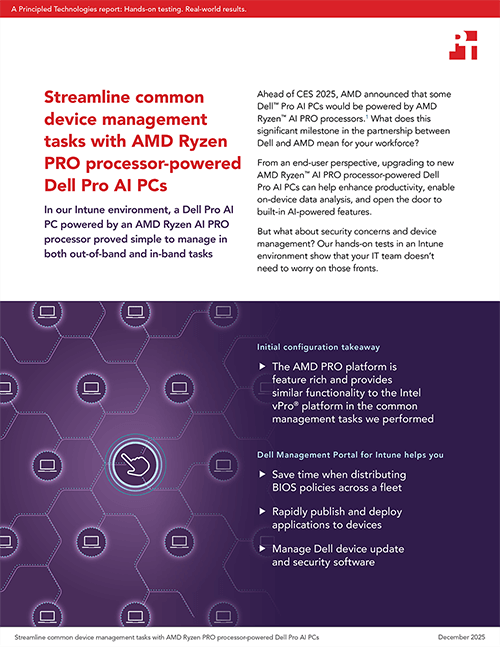
In our Intune environment, a Dell Pro AI PC powered by an AMD Ryzen AI PRO processor proved simple to manage in both out-of-band and in-band tasks
Ahead of CES 2025, AMD announced that some Dell™ Pro AI PCs would be powered by AMD Ryzen™ AI PRO processors.1 What does this significant milestone in the partnership between Dell and AMD mean for your workforce?
From an end-user perspective, upgrading to new AMD Ryzen™ AI PRO processor-powered Dell Pro AI PCs can help enhance productivity, enable on-device data analysis, and open the door to built-in AI-powered features.
But what about security concerns and device management? Our hands-on tests in an Intune environment show that your IT team doesn’t need to worry on those fronts.
What we evaluated
Dell Technologies asked us to compare the IT experience when completing common device management tasks on AMD Ryzen™ PRO processor-powered PCs versus Intel® vPro processor-powered PCs. We evaluated both out-of-band (OOB) and in-band management capabilities, where OOB management uses a secure, alternate channel to control devices, and in-band management uses the local area network (LAN) to control devices.
For OOB management of the AMD Ryzen™ PRO processor-powered Dell Pro 16 laptop, we used the AMD Management Console. The AMD Management Console leverages Desktop and mobile Architecture for System Hardware (DASH) protocols to communicate with the AMD Integrated Management Technology (AIM-T) built into AMD PRO platforms.
For OOB management of the Intel Core Ultra with Intel vPro processor-powered HP EliteBook 8 G1i and Lenovo T14 Gen 6 laptops, we used Intel Enterprise Manager Assistant (Intel EMA) and MeshCommander, an open-source Intel AMT console.
For in-band management of all three Copilot+ PCs, we leveraged Microsoft Intune with Entra ID.
We also compared hands-on time and effort for admins using the Dell and HP Intune partner portals and Lenovo integrations and utilities for software deployment and BIOS policy configuration tasks. Finally, we measured the time and effort an IT admin could expect when using Dell Management Portal for Intune instead of a manual approach.
About the Copilot+ PCs
Dell Pro 16 laptop
AMD Ryzen™ AI 7 PRO 350 processor (24 MB cache, 8 cores, 16 threads, up to 5.0 GHz, 50 TOPS ) with integrated AMD Radeon™ 860M graphics.2
16-inch Copilot+ PC
SO-DIMM replaceable DDR5-5600 MT/s memory
PCIe® Gen4 NVMe™ SSD storage
USB-A, USB-C Thunderbolt, RJ45 and barrel power delivery ports3
HP EliteBook 8 G1i Notebook Next Gen AI PC
Intel Core Ultra 7 268V with vPro processor (12 MB cache, 8 cores, 8 threads, up to 5.0 GHz, 48 NPU Peak TOPS (INT8)) with integrated Intel Arc™ Graphics.4
Both AMD and Intel bring advanced security to business-grade PCs:
AMD PRO technologies, which include AMD PRO Security and AMD PRO Manageability, deliver hardware-, OS-,and system-level security as well as simplified deployment and ongoing PC management capabilities.8
The Intel vPro platform delivers multilayered hardware-based security above and below the OS and, with Intel Standard Manageability and Intel Active Management Technology (Intel AMT), provides remote and out-of-band management capabilities.9
Remote management
For verification of OOB management capabilities, which allow IT teams to access a PC whose operating system is down, we used the AMD Management Console and Intel EMA console. Managing all PCs from a single console streamlines many important activities, including protecting sensitive information, modifying BIOS settings or boot options, and troubleshooting PCs. We verified that the hardware-based technology that facilitates OOB management of AMD PRO (AIM-T) and Intel vPro (Intel AMT) PCs enabled these remote management capabilities:
Boot control
This function allows administrators to choose how to boot a system. Using this functionality, IT teams can force-boot into the BIOS, perform a network boot, boot to a removable drive, or use other options to conduct system management outside of the OS.
Managing security configurations
The AMD Management Console and Intel EMA leverage HTTPS secure transport and web services management to protect user data during transmission, authenticate users, and prevent eavesdropping and unauthorized modification while data is in motion.
Soft shutdowns
A soft shutdown closes all processes and turns off the PC after making sure everything is off. This helps prevent data loss or corruption, ensures the drivers and services are cleanly unloaded, and reduces hardware risk. Your IT team can even automate soft shutdown processes when applying updates.
Keyboard, video, and mouse (KVM) redirection
With this hardware-based feature, a single admin or team can gain full remote control even before the OS loads. This lets IT troubleshoot BIOS issues or reinstall the OS without needing physical access to those systems.
Table 1: Common OOB management tasks and features. AMD PRO: We accessed the Dell PC via the AMD Management Console. Intel vPro: We accessed the HP and Lenovo PCs via the Intel EMA console and MeshCommander.
AMD PRO
Intel vPro
Boot control
Yes
Yes
HTTPS secure transport and web services management
Yes
Yes
Soft shutdown
Yes
Yes
KVM redirection
Yes
Yes
We found the AMD Management Console was well laid out and easy to use. The at-your-fingertips task and alert icons help IT teams monitor AMD PRO system health and remotely manage those systems. We also found setting up the OOB capabilities in the AMD PRO scenario was easier than in the Intel vPro scenario because we didn’t have to obtain a third-party signed certificate for provisioning. The AMD Provisioning tool uses self-signed certificates for full OOB provisioning.
Screenshot of the AMD Management Console. Source: PT.
IT efficiency and fleet manageability
Managing a fleet can be a challenging and time-consuming effort for your IT team. But, with the right in-band management tools, your admins can finish their device management tasks faster and focus on other strategic endeavors.
Dell Management Portal for Intune is a cloud-based bridge for Dell Services and pre-installed software and security solutions. IT admins can view device information, access BIOS passwords and BitLocker keys, publish select Dell apps to their Intune environment, and manage assignments in Intune. From the BIOS Policies tab, IT admins can create, publish, and manage custom BIOS setting for a group or fleet of Dell devices via Microsoft Intune.10 In addition to configuring and saving up to 488 BIOS settings as a new Dell BIOS Policy, IT admins can set unique-per-device, randomized BIOS passwords for that policy—“an industry-first capability delivered by Dell.”11
Screenshot of the Let’s get work done screen in the Dell Management Portal GUI. Source: PT.
Screenshot of the Create a new policy screen in the Dell Management Portal GUI. Source: PT.
Dell Client Device Manager (DCDM) is a unified approach to device management. Instead of juggling multiple Dell applications (e.g., Dell Command Update and Dell Trusted Device), IT admins can manage update- and security-based device management tasks from a single application. With DCDM, IT admins can deploy an Update Module (for BIOS, drivers, or firmware for PCs and docks), a Security Module (to verify BIOS and firmware or detect common Vulnerabilities and Exposures [CVEs]), or a Telemetry Module (customer-approved sharing of device data with Dell) across a fleet of Dell devices.12 IT admins can also use DCDM to automate security and compliance checks.13
We completed two common device management tasks on the three Copilot+ PCs. Key takeaways:
For the Dell AI PC, we accomplished both tasks within the Dell Management Portal connected to Intune.
For the HP AI PC, we deployed a BIOS policy through HP’s Intune partner portal. To deploy software, we had to download HP Support Assistant through the HP website, package it, and deploy it through Intune.
For the Lenovo AI PC, software deployment was faster because Lenovo Commercial Vantage is an app you can download from Microsoft Store that allows admins to skip signing into Intune. However, we had to manually deploy a BIOS policy using software we downloaded from Lenovo and published to Intune.
From an IT perspective, both tasks were more straightforward with the Dell device management tools—they were all in one place and didn’t require any fancy footwork to accomplish the tasks.
Time and steps to deploy a BIOS policy on a single device using in-band management through Intune. Source: PT.
Time and steps to deploy software on a single device using in-band management through Intune. Source: PT.
We also found that it was easy to see which applications needed updating through the “one click update” capability on Dell Management Portal for Intune. At the time of testing, the HP portal didn’t have this capability, and Lenovo didn’t have a partner portal at all.
Screenshot of the Dell Command Monitor GUI. Source: PT.
Dell Command | Endpoint Configure for Microsoft Intune (DCECMI) provides a secure way to craft and manage BIOS configurations within the Microsoft Intune portal based on specific security, privacy, or performance needs. IT admins can then assign these custom BIOS configuration profiles to appropriate device groups.14
Screenshot of the Dell Command Endpoint Configure GUI. Source: PT.
With DCECMI, an IT admin can also obtain reports of their client devices’ configuration status, deploy unique-per-Dell-client-device BIOS passwords, report Dell client device BIOS configuration status, and configure Dell systems BIOS settings with zero-touch deployment.
Screenshot of the Microsoft Intune partner portals GUI. Source: PT.
But it’s not enough to know how much time you can save managing a single device using Dell Management tools through the Intune partner portal.
To quantify the hands-on IT admin time a company could save by using Dell Management solutions over a manual approach, we measured the time it would take to complete a single workflow–featuring BIOS configuration and app installation—both with and without the Dell Management Portal.
Table 2: Admin hands-on time for in-band BIOS configuration and app installation on one, two, and three Dell devices. Source: PT.
Dell Management Portal Time (hh:mm:ss)
Manual approach Time (hh:mm:ss)
BIOS configuration and app installation
Total
BIOS configuration
App installation
Total
1 device
0:00:16
0:03:24
0:01:16
0:06:53
0:08:09
2 devices
0:00:18
0:03:26
0:02:32*
0:13:46*
0:16:18
3 devices
0:00:20
0:03:28
0:03:48*
0:20:39*
0:24:27
We derived the extrapolated times in Table 3 from the results in Table 2. With Dell Management Portal for Intune, we had to perform a one-time BIOS configuration and application installation, which took a total of 3 minutes and 8 seconds. Adding devices after the initial setup required about 2 seconds of hands-on time per device. By contrast, manual configuration was a heavy lift right from the start.
Table 3: Extrapolated admin hands-on time for in-band BIOS configuration and app installation on Dell fleets of varying sizes. Source: PT.
Dell Management Portal Time (hh:mm:ss)
Manual approach Time (hh:mm:ss)
BIOS configuration and app installation
Total
BIOS configuration
App installation
Total
50 devices*
0:01:54
0:05:02
1:03:20
5:44:10
6:47:30
250 devices*
0:08:34
0:11:42
5:16:40
28:40:50
33:57:30
500 devices*
0:16:54
0:20:02
10:33:20
57:21:40
67:55:00
*Manual approach total times assume that IT staff do each system configuration sequentially and use downloads from support.dell.com and not a local software repository. These results also assume that IT has already assigned both the BIOS profile and published applications to the target group.
We calculate that companies can drastically reduce the admin load when they incorporate Dell Management tools into their daily routines.
Conclusion
We found that AMD Ryzen™ AI PRO processor-powered Dell devices were easy to manage in the tasks we tested. For in-band management, we used Intune and the Dell Management Portal. For OOB management, we used the AMD Management Console. We also found that, in common management scenarios, the AMD platform delivered similar capabilities to the Intel vPro systems we tested. For these common management scenarios, IT managers can enjoy similarly simple and effective management whether using Intel- or AMD-powered devices.
This project was commissioned by Dell Technologies.
December 2025
Principled Technologies is a registered trademark of Principled Technologies, Inc.
All other product names are the trademarks of their respective owners.
Principled Technologies disclaimer
Principled Technologies is a registered trademark of Principled Technologies, Inc. All other product names are the trademarks of their respective owners.
DISCLAIMER OF WARRANTIES; LIMITATION OF LIABILITY: Principled Technologies, Inc. has made reasonable efforts to ensure the accuracy and validity of its testing, however, Principled Technologies, Inc. specifically disclaims any warranty, expressed or implied, relating to the test results and analysis, their accuracy, completeness or quality, including any implied warranty of fitness for any particular purpose. All persons or entities relying on the results of any testing do so at their own risk, and agree that Principled Technologies, Inc., its employees and its subcontractors shall have no liability whatsoever from any claim of loss or damage on account of any alleged error or defect in any testing procedure or result.
In no event shall Principled Technologies, Inc. be liable for indirect, special, incidental, or consequential damages in connection with its testing, even if advised of the possibility of such damages. In no event shall Principled Technologies, Inc.’s liability, including for direct damages, exceed the amounts paid in connection with Principled Technologies, Inc.’s testing. Customer’s sole and exclusive remedies are as set forth herein.



 Twitter
 Facebook
 LinkedIn
 Email
Email